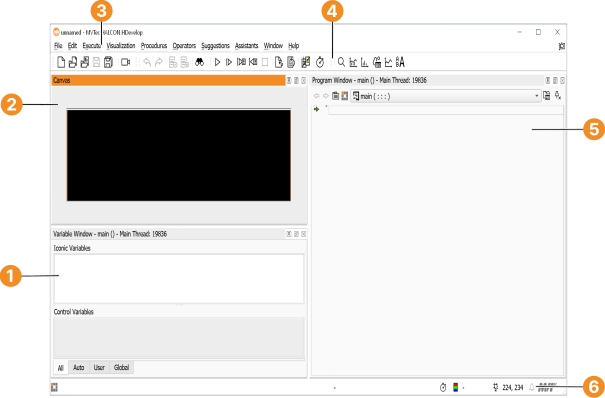
Figure 2.2: User interface.
When HDevelop is started for the first time it looks similar to figure 2.2. The following windows are available by default:
Program variables can be watched in this window. It displays all variables of the current procedure and their current values. Iconic variables are displayed as thumbnails, whereas control variables are displayed as text. The layout of this window can be switched between horizontal and vertical splitting by double-clicking the separator. See also 变量窗口.
You can double-click iconic variables to display them in the active graphics window. Double-clicking control variables opens an inspection window with a formatted list of the current values and statistical data. See also Inspecting Variables.
The canvas window is a container for graphics windows. It contains one empty graphics window, at first startup of HDevelop. Graphics windows are used to display iconic data like images, regions, and XLDs, for more information see also 图形窗口. Each graphics window provides its own toolbar to adapt the image display to your needs and to, for example choose between different zoom steps. By default, the toolbar of graphics windows on the canvas is hidden. To display it, right-click in the canvas window and activate Show Graphics Window Toolbar.
The canvas window helps you to organize multiple graphics windows. You can arrange and resize the graphics windows on the canvas freely. For this, right-click in the canvas and activate Show Graphics Window Frame. Now you can drag the title bar of the graphics window to move it or drag the bottom right corner to resize the window. You can also detach the graphics windows from the canvas to display them floating. See also section “Canvas Window”.
This window displays the current program. It provides syntax highlighting with user-definable colors. The left column displays the program line numbers. The small black triangle is the insert cursor, which is where new program lines will be added. In the following, it is referred to as IC. The green arrow is the program counter which marks the next line to be executed. In the following, the program counter is referred to as PC. You can also add or remove breakpoints in the current program in this column. These will halt the program execution at user-defined places so that intermediate results may be examined. See also 程序窗口.
When adding new lines or modifying existing lines, advanced autocompletion features speed up typing and help keeping the program consistent. Program lines can also be modified by double-clicking them and editing them in the operator window.