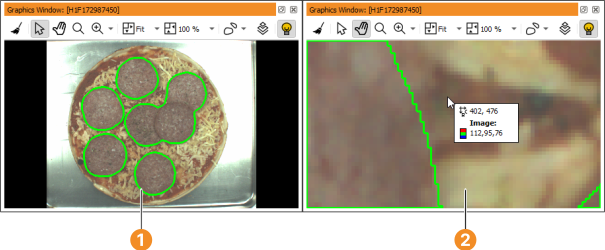
Figure 6.10: Graphics window displaying a tasty pizza.
This window displays iconic data: images, regions, and XLDs. You can open several graphics windows. The active graphics window is shown by in the window's tool bar.
Figure 6.10 shows an example graphics window which is displaying a color image of a pizza overlaid with region data (the segmented salami slices). One of the displayed regions is selected (illustrated by the dashed border). The variable name and index of the selected region is displayed in the title bar.
The origin of the image coordinate system is the upper left image corner
with the coordinates (0,0).
The x values (column) increase from left to right, the y values (row) increase
from top to bottom.
When the mouse cursor is placed inside a graphics window, the coordinates
(row, column) and the gray value (or in this case: the RGB values) at that
position are displayed in the status bar (see section “Status Bar”).
Sometimes, it is desirable to display this information close to the mouse cursor.
This can be achieved by holding down the Ctrl key.
! Please note this does not work
when the zoom in and out tool is selected since pressing Ctrl inverts the
corresponding zoom action.
Figure 6.10 shows the coordinate/color value display after zooming in with the mouse wheel.
Normally, the visible part in the graphics window is based on the most recently displayed image, which is automatically zoomed so that every pixel of the image is visible. The coordinate system can be changed interactively using the menu Visualization ▹ Set Parameters ▹ Zoom (see Zoom settings) or the operator dev_set_part. Every time an image with another size is displayed, the coordinate system is adapted automatically.
Every HDevelop graphics window has its own visualization parameters. Thus, modifying the parameters (see 可视化参数) applies to the currently active graphics window only. The parameter settings of all other open graphics windows remain unchanged.
Each window has a history that contains all objects and all display parameters that have been displayed or changed since the most recent clearing or display of an image. This history is used for redrawing the contents of the window. The history is limited to a maximum number of 30 “redraw actions”, where one redraw action contains all objects of one displayed variable.
Other output like text or general graphics like disp_line or disp_circle or iconic data that is displayed using HALCON operators like disp_image or disp_region are not part of the history, and are not redrawn. Only the object classes image, region, and XLD that are displayed with the HDevelop operator dev_display or by double-clicking an icon are part of the history.
When opening a graphics window via Visualization → Open Graphics Window... and the window height and width are set to -1, the window size is set by HDevelop. It is taken from the persistent preferences of HDevelop (usually the size of the last graphics window in the previous HDevelop session).