Figure 6.7: Looking for operator calls containing “grab_image”.
The Find/Replace dialog provides comprehensive facilities for searching the program code. You can perform a full text search or search for variable names as well as operator (or procedure) calls. In addition, you can replace variable names and substitute operator or procedure calls. The dialog is displayed in figure 6.7.
The search context can be set to one of the following entities:
| Context | Description |
| Variables | Find program lines with variable names that match the search text. |
| Operators | Find program lines with operator or procedure calls that match the search text. |
| Texts | Full-text search. Find program lines that match the search text anywhere. |
The search scope can be specified as follows:
| Scope | Description |
| All | Search the main procedure, all local and all external procedures. |
| Program | Search the main procedure and all used procedures. |
| Current Procedure | Search the current procedure only. |
! Please note that locked procedures are not searched. See section “Protected Procedures”.
The following options specify how the search is performed:
| Option | Description |
| Case Sensitive | By default, the case of the search text is ignored, thus searching for image will find Image or IMAGE as well. Check this box to make the search case-sensitive. |
| Whole Words | By default, program lines are matched even if the search text is only part of a word, thus an operator search for grab_image also matches operator calls to grab_image_async or grab_image_start. Check this box to find only exact matches. |
| Backward | Check this box to reverse the search direction. |
Finding Single Occurrences of the Search Text
Enter the search text and click Find. If there is no match, the text field will blink shortly. Otherwise, the first matching program line in the current procedure is highlighted. Each subsequent click of Find highlights the next matching program line. If the last matching line of the current scope has been reached, the text field blinks shortly. The next click on Find starts over at the beginning.
Finding All Occurrences of the Search Text
Enter the search text and click Find All. The search result will be shown in the tab card Find Results of the Quick Navigation window.
Clicking an entry focuses the corresponding program line in the active program window. If the selected procedure is already displayed in a program window tab, the corresponding tab is activated. Otherwise, the current view switches to the selected procedure.
You can even select multiple lines from the search result by holding the Ctrl key. The following actions may be performed for all selected lines (from the context menu of the search result): Cut, Copy, Delete, Activate, Deactivate, and Bookmark Selection. Use Bookmark Selection to add bookmarks to the selected program lines. This will also add the selected program lines to the tab Bookmarks. This way you can “remember” a search result for later use; just open the Quick Navigation window again (Menu Window ▹ Open Quick Navigation) and go to the tab card Bookmarks.
The “find all” operation is recommended before doing a global replace to preview which program lines will be affected.
Click Variables to specify the search context. Enter the search text and the replace text. You can replace parts of variable names by keeping Whole Words unchecked.
Click Find until the desired line is found. Afterwards, click Replace to replace all occurrences of the search text in the matched line. The next matching line is highlighted automatically.
Click Replace All to replace all occurrences of the search text in the specified scope. We recommend doing a Find All beforehand to estimate the extent of this operation.
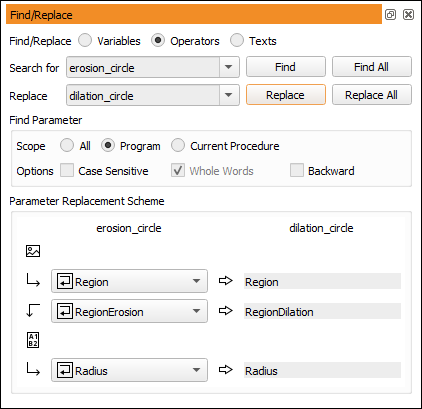
You can replace one operator or procedure call with another. Because different operators very likely have different parameters, the source parameters have to be mapped to the target parameters beforehand. See figure 6.9 for an example.
Click 算子 to specify the search context. Enter the source operator or procedure name and the target operator or procedure name. When both names are specified, the parameters of the target operator/procedure are listed at the bottom of the dialog. For every target parameter you have to select or enter a corresponding source parameter.
Please note that the option Whole Words is always enabled in this mode because only exact matches are valid when replacing operator calls.