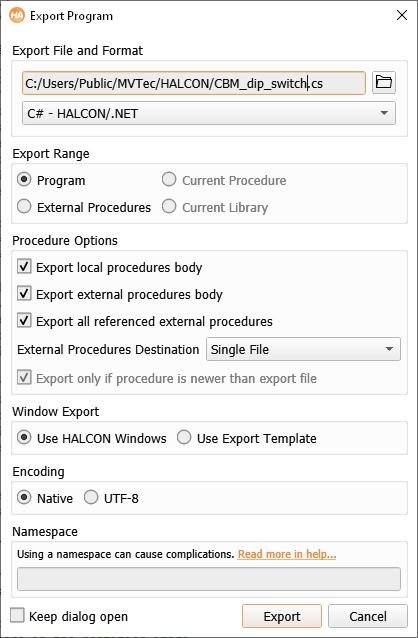
Using this dialog, you can select an export format and write (parts of) the
current program to a file in that format.
The dialog is displayed in figure 6.6.
Figure 6.6: Export.
The button next to the export file name opens a
file selection dialog to select a file name and an export
format. The following formats are supported:
The file name extension corresponding to the selected export format is appended
to the specified file name.
Export Range
The export range specifies which parts of the current program are to be
exported.
Program:
The entire program is exported the main procedure and all local
procedures.
All used external procedures are exported depending on the
setting of the external procedure options (see below).
Current Procedure:
The current procedure and all used local procedures are
exported.
All used external procedures are exported depending on the
setting of the external procedure options (see below).
External Procedures:
All external procedures are exported depending on the
setting of the external procedure options (see below).
Current Library:
The current library is exported (all procedures that are part of the current
library).
All used external procedures (that are not part of the current library)
are exported depending on the setting of the external procedure options (see
below).
The short description and chapter information of procedures are exported as
comments.
Arbitrary code can be embedded with special comment lines (see
section “General Aspects of Code Generation”).
Procedure Options
Defines the export behavior for procedures.
Export local procedures body:
If checked, both the declaration and the body of local procedures are
exported.
Otherwise, only the declaration is exported.
Export external procedures body:
If checked, both the declaration and the body of external procedures is
exported.
Otherwise, only the declaration is exported.
Export all referenced external procedures:
Determines, if all referenced external procedures are also
exported with the current program.
External Procedures Destination:
By default, external procedures are exported to a single file.
Select Separate Files to export external procedures to separate files.
The file name corresponds to the procedure name while the file extension is
derived from the export format.
Select Separate or Library Files to export external procedures to separate
files but keep the files of libraries together in a single file.
Export only if procedure is newer than export file:
Export only those procedures to separate files whose time stamp is newer
than the time stamp of the destination file.
Window Export
Specifies the export behavior of HALCON windows:
Use HALCON Windows: Export as a stand-alone project.
Use Export Template (HALCON/.NET only): Export as a project using the supplied project template.
Encoding
Specifies the encoding of exported programs.
Native: Export in the encoding defined by the operating system.
UTF-8: Force export in UTF-8 encoding (Unicode).
For C/C++, the encoding must match the interface encoding used by the application.
For C#, exporting to UTF-8 should always work fine.
Namespace
Can be used to avoid name conflicts between exported code and existing names in the client application, or to
avoid name conflicts between multiple exported libraries in the same client application.
If this field is empty no namespace is used.
If this field is filled all code, generated during this one export operation, will be wrapped using exactly this one name.
Template projects expect exported code without namespace, and a template export with namespace only works with adapted projects.
When performing multiple exports with different namespaces the exports for each namespace must be self-contained including all dependencies.
Exported procedure calls will not "see" exported procedures from the other namespace. The solution here would be to export the procedure call,
with all dependencies even if it can lead to code duplication.
The separate exports cannot share global variables. To avoid this: Do not use global variables,
or use multiple "global def" declarations, and do not rely on sharing of global variables between libraries.
[] This icon appears in some cases, when an export may not be working.
Hovering over the icon provides more information.
Keep dialog open
Checking this box keeps the dialog open for subsequent exports.