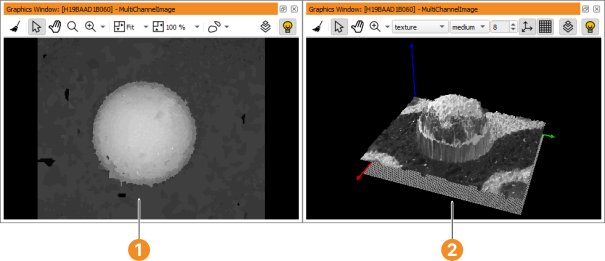
Figure 6.19: Default vs. 3D plot mode.
Clicking activates an interactive 3D plot mode. It displays meaningful information for height field images, such as images that encode height information as gray values. The greater the gray value, the higher the corresponding image point. Figure 6.19 shows a height field image of a solder ball and the corresponding 3D plot .
The 3D plot mode uses OpenGL and benefits from hardware acceleration.
Using the mouse you can alter the view of the 3D image (select mode must be active for this to work, click in the tool bar):
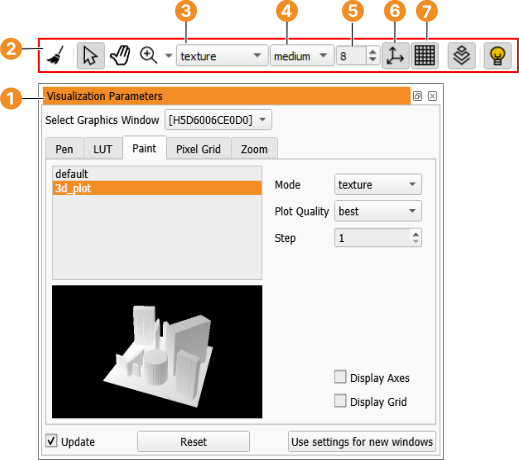
There are four different rendering methods (texture, shaded, hidden_lines, and contour_lines) which can be selected from the drop-down menu in the tool bar. See set_paint for detailed information about the different methods. The display quality can be fine-tuned in the tool bar of the graphics window or in the visualization parameters of the graphics window (right-click into the graphics window, select Set Parameters, and open the tab card Paint).
See also section “Paint settings” for the other paint modes that can be selected in this window.