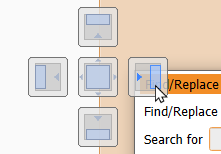
→ Drop indicators appear, showing possible docking positions: docking to the left, right, upper, or lower part. The indicator in the middle tabs the window. The window joins the already docked window as a tab card.1)

HDevelop offers various possibilities to organize and personalize your workspace. The following paragraphs show which changes to HDevelop's layout are possible.
HDevelop supports docking of windows. Docked windows are bound to the window area of the main window. In the default layout, the program window, the graphics or canvas window, and the variable window are already docked. You can always restore your favorite default layout by clicking Window ▹ Restore Default Layout Use ▹ Canvas or ▹ Restore Default Layout Use ▹ Docked Graphics Window.
To dock a floating window, do the following:
Alternatively, click  Dock window
in the top right corner of the window. The window docks or tabs at its prior
position.
Dock window
in the top right corner of the window. The window docks or tabs at its prior
position.
To undock a window:
Undock window in the top
right corner of the window or double-click the title bar of the window.
The window will resize to its prior size as floating window.
The position and size of docked windows is restored after closing and reopening HDevelop. There are only a few exceptions to this rule: HDevelop Assistants (Calibration, Measure...), Call Stack, Find Replace Dialog, Output Console Preferences, ROI Window, and Inspection Windows (ROI Inspect, Handle Inspect, Variable Inspect...). Note that the main HDevelop windows, namely the graphics window, the program window, and the variable window are always restored, even if they have been closed before.
Hiding Windows in the Side Bar
To keep your workspace clear, you can hide docked windows in the sidebar.
 Auto-hide:
  Disable auto-hide:
Docked windows occupy a fixed position within the window area of the main window. To change their size, drag the border between two docked windows. Double-clicking the border between two docked windows distributes them equally.
Floating windows can be positioned independently from other windows, even outside the main window. They can be resized by dragging their window border.
Organizing Graphics Windows on the Canvas
You can use HDevelop's canvas window to organize multiple graphics windows. To do this, add graphics windows to the canvas and arrange them as you wish. For more information, please refer to section “Canvas Window”.
| 1) Note that
graphics windows can only be tabbed to other graphics windows.
Thus, it is not possible to tab a graphics window to any other kind of window
or the other way round.
|