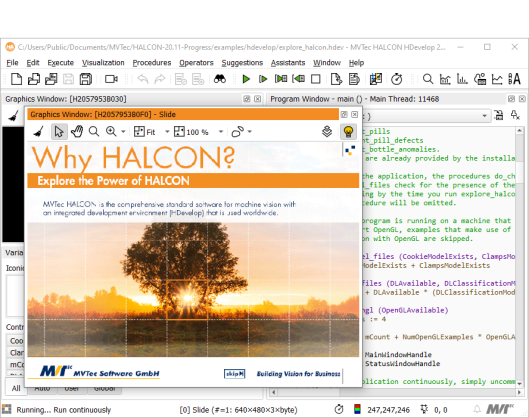
Figure 2.3: Explore the power of HALCON.
HALCON comes with many HDevelop example programs from a variety of application areas. These range from simple programs that demonstrate a single aspect of HALCON or HDevelop to complete machine vision solutions. As an introduction to HDevelop, we recommend trying some of these programs to quickly get accustomed to the way HDevelop works.
The example program “Explore the Power of HALCON” demonstrates many different capabilities of HALCON in one program. It can be started from the start dialog, see figure 2.1 (2). Running this program is highly recommended to get a good overview of the many application areas of HALCON.
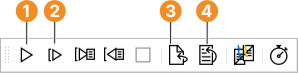
“Explore the Power of HALCON” starts up automatically when loaded from the start dialog. After loading it manually or loading one of the other example programs click or press F5 to start it, see figure 2.3 (1).
For more information on how to run programs with a floating canvas or graphics window, see section “Canvas Options”.
The example programs have been categorized by application area, industry, method, and operator usage. A special category “New in version” groups examples by their appearance in specific HALCON releases. Browsing these categories, you can quickly find example programs that cover image processing problems that you may wish to solve with HALCON. These programs may serve as a foundation for your own development projects.
To open the example program browser, click File ▹ Browse HDevelop Example Programs...
For more information, see section “Browse Example Programs Dialog”.
Click to run the program.
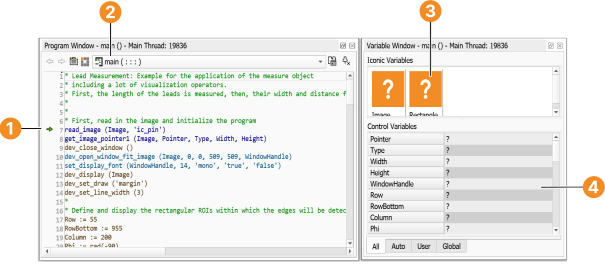
The program lines of the loaded example program are now displayed in the program window. The PC is set to the first executable line of the program (leading comments are ignored). The variable window is also updated: It lists the variables that are used in the main procedure, which is initially the current procedure. The variables are currently uninstantiated, meaning their current value is undefined. This is indicated by the question mark (?). Both windows are displayed in figure 2.4.
The program line next to the PC is executed, the PC is moved to the following line and so forth until the execution stops. There are four reasons for the program execution to stop: 1) the last program line has been executed, 2) a breakpoint has been reached, 3) the HDevelop instruction stop has been encountered as in this example, or 4) an error has occurred.
During execution, the graphics window is used for visualization. Changes to the variables are reflected in the variable window. When the program execution stops, the status bar displays the number of executed lines and the processing time.
To continue with the program execution, click Execute ▹ Run again until the end of the program is reached.
HDevelop supports several command line switches to modify its startup behavior. You can also add the path and file name of an HDevelop program on the command line to load it directly. This is identical to an invocation of HDevelop without any parameters and a subsequent loading of the program. The program name may contain environment variables in Windows syntax as in:
hdevelop %HALCONEXAMPLES%/hdevelop/explore_halcon.hdev
Or, you can convert HDevelop programs to other programming languages without opening the graphical user interface at all. A full list of the supported command line switches is available with the following command:
hdevelop --help
See appendix “HDevelop” for a listing of the available switches, and some example uses of the command line.