The program window supports full text editing.
Continuous portions of text can be selected by dragging with the mouse.
An existing selection can be extended by holding down Shift and clicking
the left mouse button.
Double-clicking selects the word under the mouse pointer while triple-clicking
selects the entire line.
To edit a program line in the operator window, double-click it with the left
mouse button.
If the operator window is not currently open, hold down Ctrl while
double-clicking.
- The window title of the operator window clearly indicates that you are
editing an existing program line. It also displays the procedure name and
the line number.
- Clicking OK or Replace in the operator window will replace the
original program line. This is even the case if the corresponding program
line is no longer in view, for example, if a different procedure is selected in the
program window.
If the program line is deleted before the changes are committed in the
operator window, the edited line will be inserted as a new program line at
the IC. If you are in doubt about the current status, check the window title
of the operator window.
Comments
Comments start with an asterisk (*) as the first character.
You can also add comments at the end of regular program lines by introducing
them with //.
  * this comment is ignored during program execution
  read_image (Image, 'clip')             // instantiate iconic variable
  threshold (Image, Region, 0, 63)       // select dark pixels
Special Input Formats
Certain operator calls can be entered in different formats.
Syntactically, they are equivalent but the first variant is more readable and
thus recommended.
It is also the one used when entering the corresponding calls via the operator
window.
- Variable assignments
FileName := 'clip'
assign('clip', FileName)                // deprecated
- Setting individual tuple elements
Line[12] := 'text'
assign_at(12, 'text', Line)             // deprecated
Note that for loops always have to be entered in the following format:
for Index := Start to End by Step
 ...
endfor
Line Continuation
Operator calls can span several lines for readability.
A line can be continued by entering a backslash character as the last character
of that line.
For example, you can enter
disp_arrow (WindowID, \
            Row[i], \
            Column[i], \
            Row[i]-Length*sin(Phi[i]), \
            Column[i]+Length*cos(Phi[i]), \
            4)
instead of
disp_arrow (WindowID, Row[i], Column[i], Row[i]-Length*sin(Phi[i]), Column[i]+...
Auto Indenting
The indent of new lines is adjusted automatically.
Usually, the indent of the previous line is maintained.
If a line is continued inside the parentheses of an operator call, the new line
is indented up to the opening parenthesis.
If the previous line opens a control structure (for example, if or while), the
indent is increased by the indent size.
The indent size is specified in the preferences (see
Program Window).
It defaults to four spaces.
If a control structure is closed (for example, by entering endif or endwhile),
the indent of the current line is decreased by the indent size.
Advanced Autocompletion
The program window provides advanced autocompletion to support you in
several ways.
- Getting started
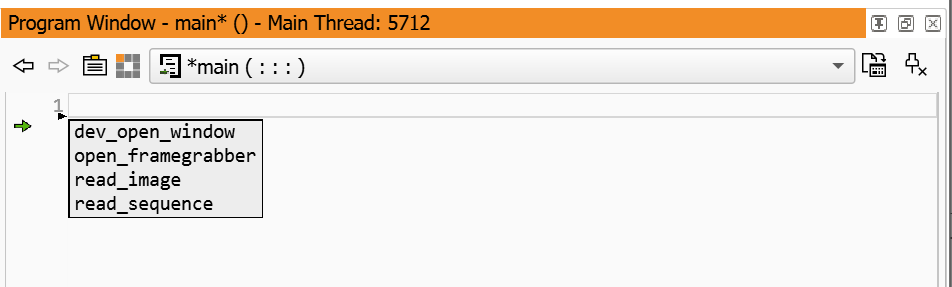
HDevelop's autocompletion can assist you getting started with a completely
empty program. Press Tab to get a list of typical first operators
like dev_open_window and read_image.
- Suggestions for empty code lines
Possible successors of the previous HALCON operator are suggested after
pressing Tab.

Press Shift+Tab to get suggestions for possible predecessors.

- Typing support
When you start typing a new line, HDevelop will suggest a list of matching operator
names:

Note that the line is highlighted as invalid (red in the default color scheme)
because it is still incomplete.
The list is updated immediately as you continue typing:

Press Tab to complete to the longest common string. In this example,
only one operator name remains in the list. Thus, it is fully completed,
including the opening parenthesis of the operator call:

Once the cursor moves inside the parentheses, the suggestion list changes from
operator mode, to parameter mode. The signature of the selected
operator is displayed, and the parameter corresponding to the cursor position
is highlighted in bold.
The first entry in this list is a suggestion that completes the full operator
call up to the closing parentheses.
Again, typing ahead updates the list of suggestions accordingly.
The remaining entries are suggestions for the first parameter of the operator
call.
Press Tab to select the first suggestion,

or press Up or Down to step through the list entries,

and press Tab or Return to select the highlighted entry.
Then, enter a comma or press Tab again to get suggestions for the second parameter:
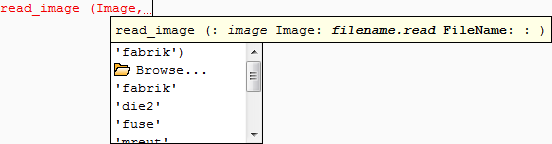
Double-clicking the browse button in the suggestion list opens up a file selection dialog to specify the file name parameter.
These browse buttons are included in the suggestions lists of all parameters
that specify a file name.
In this example, we want to load the image clip, so none of the suggestions
fits.
Just type the file name in single quotes ('clip') and press Tab to
complete the parameter list.
The closing parenthesis is inserted automatically:

When entering expressions, the advanced autocompletion also suggests
operations supported by the HDevelop language (see
chapter “HDevelop Language”).
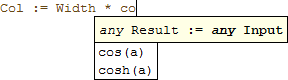
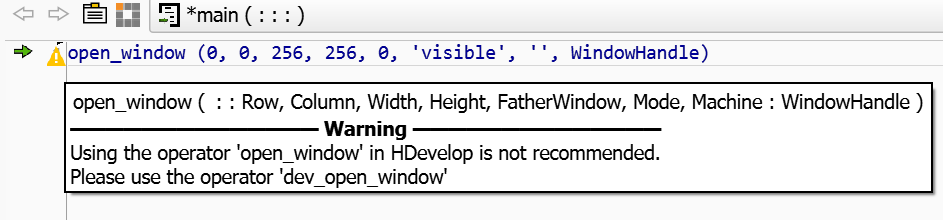
Please note that the advanced autocompletion does not suggest legacy or
deprecated operators.
If you enter such an operator manually, a warning icon is displayed in
the left column.
Move the mouse cursor over this icon to get a tool tip with a
corresponding warning message:
The program window also supports autocompletion of block statements.
When entering a control statement, for example, the control statement of a for
loop, the corresponding end statement, for example, endfor of the block
is automatically inserted by pressing Return.
Special Keyboard Shortcuts in the Program Window
|
Tab | | Cursor at the beginning of line: Adjust indentation of current line |
|
| | Selected text: Indent corresponding code lines one level |
|
| AC | Operator suggestions: Complete to highlighted suggestion or to longest common string from suggestion list |
|
Shift+Tab | | Selected text: Outdent corresponding code lines one level |
|
Ctrl+Return | | Execute current line (same as clicking Apply in operator window; see section “Control Buttons”) |
|
Shift+Return | | Cursor at the end of line: Execute current line and insert new line (depends on the setting of the Select the behavior of pressing the [Return] key option; see section “General Options ▹ General Options”) |
|
Ctrl+F | | Open find/replace dialog with selected text (see section “Find/Replace Dialog”). |
|
Escape | AC | Hide suggestion list |
|
Ctrl+Space | AC | Re-display suggestion list based on cursor position or selection |
|
Up | AC | Highlight previous entry in suggestion list |
|
Down | AC | Highlight next entry in suggestion list |
|
| AC | Parameter suggestions: Complete to highlighted suggestion or first suggestion if no suggestion is highlighted |
|
Return | AC | Cursor at the end of a block statement: Insert the corresponding end statement of the block |
|
Entries marked with AC are only available if advanced autocompletion is enabled. |
Special Operator Handling
Some operators provide additional functionality when being edited.
This functionality is available via an action button next to the parameter
field in the operator window, or as an action button in the
advanced autocompletion suggestion list.
If an operator contains a parameter that specifies a file name, the parameter
value can be specified in a file selection dialog.
See the previous section for an example (read_image).
The operators info_framegrabber and open_framegrabber provide a button
to detect the available image acquisition interfaces automatically (see also
图像采集助手).