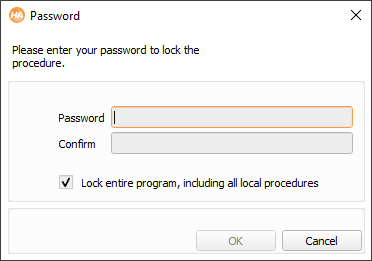
Figure 6.60: Entering a password to protect a procedure. The option “Lock entire...” is only available for the main() procedure.
The concept of protected procedures is explained in section “Protected Procedures”. The status of a procedure can be changed via the procedure interface dialog. To manage the status of multiple procedures at once, click Menu Procedures ▹ Manage Procedures and select the tab card Manage Passwords.
If you want to protect a procedure with a password:
Then, a separate window appears and the new password must be entered twice (see figure 6.60). If both times the same password is used, clicking OK assigns the password. Otherwise, an error message is displayed and you have to repeat the password assignment. When a protected procedure is finally saved, it is stored in a binary format.
If you set up a password for the main procedure, you can optionally lock the entire program, and protect all local procedures with the same password. The same mechanism works for library procedures: You can either protect the library procedures individually, or protect the entire library at once (see section “”). If individual local procedures have been password-protected before, this option will only work, if the same password is selected. Otherwise you will have to remove all other passwords from local procedures before locking the entire program.
Figure 6.60: Entering a password to protect a procedure. The option “Lock entire...” is only available for the main() procedure.
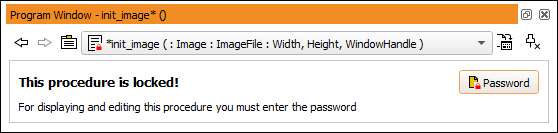
When HDevelop is started again, the protected procedure is locked. When trying to edit the procedure, for example, by selecting it from the combo box in the program window, a corresponding message is displayed in the program window see figure 6.61). Additionally, a password button is displayed in the program window. The procedure remains unlocked for this session, that is, until you close HDevelop or lock the procedure again manually.
Changing the Status of a Protected Procedure
To change the status of a protected procedure, it must be unlocked. Use the procedure interface dialog to change the password or remove the password entirely.
When working with protected procedures, be aware that the password
cannot be reconstructed, so be very careful not to forget it and not to
repeat a typing error when assigning it!
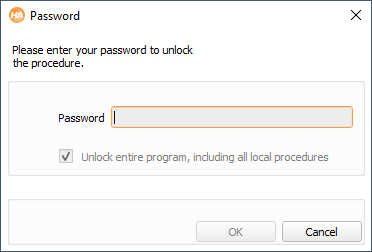
The option “Unlock entire...” is only available if local procedures have been locked at once.
Note that, in some situations protected procedures behave differently from
common procedures.
In particular, as they cannot be viewed and modified by unauthorized
users, they also cannot be copied, printed, or exported to any
programming language
(however, they can be duplicated using the menu entry
Menu Procedures ▹ Duplicate...).
Additionally, if a protected procedure contains a call to another
procedure for which the interface was changed, the procedure call is not
adapted to the changes but is disabled for the current program.