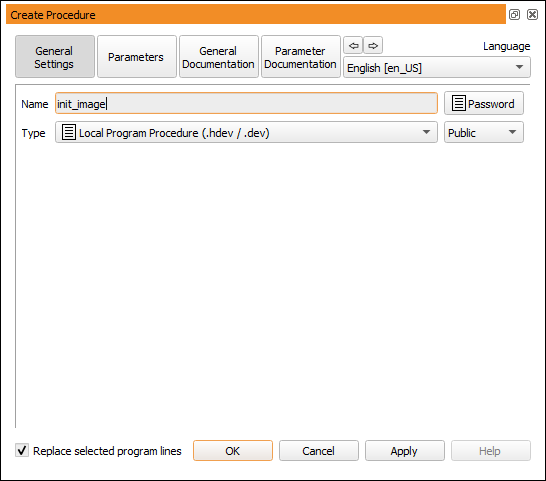
- Name
- The procedure name must start with a letter and may consist of alphanumeric
characters and underscores.
If you enter an invalid name, such as an operator name, a reserved word, or a
name that contains invalid characters, the text field will be highlighted.
You will not be able to close the dialog and apply the changes until a
valid name is provided.
Operator names cannot be used because operators and procedures share the same
namespace.
However, procedures with the same name (but different locations) are allowed in
HDevelop (see section “Procedure Resolution”).
- Password
- You can optionally protect procedures by a password.
Protected procedures can be used in HDevelop programs without
restrictions.
However, to view and modify them the correct password needs to be
provided.
See section “Protected Procedures” for more information.
- Type
- This check box determines the procedure type (see
section “Procedure Types”).
By default, a local procedure is created.
Local procedures are saved within the HDevelop program.
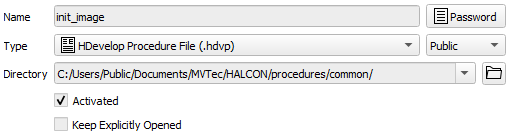
External procedures are saved as stand-alone files.
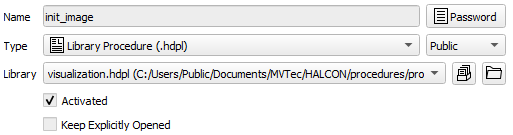
Libraries may contain multiple procedures in a single file.
The file type of external procedures can be specified explicitly (.hdvp
or .dvp; see section “File Types”).
External and library procedures can be reused in other HDevelop programs.
You can change the procedure type at any time.
- Directory
- For external procedures a target directory has to be specified.
The first directory specified in the procedure preferences (see
section “Procedures ▹ Directories”)
is suggested as the target directory.
You can select an appropriate directory from the list, or click the
browse button to select an arbitrary directory.
If the selected directory is not currently contained in the configured
directories, HDevelop will ask you if you want to add it to the list when you
commit the dialog.
- Library
- For library procedures a target library has to be specified.
The list contains all currently available libraries.
The buttons next to the list allow you to create a new library or browse for an
existing library that is currently not configured.
- Scope
- (Public or Private)
Specifies whether procedures can be called by any procedure (public),
or only by procedures in the same directory or file (private) as described
in section “Procedure Scope”.
The icons of private procedures are decorated with a green dot.
- Activated
- This check box determines whether or not the selected external procedure can be
resolved.
This option can also be toggled in the preferences (see
section “Procedures ▹ External Procedures”).
- Keep Explicitly Opened
- (existing external procedures only)
If checked, the selected procedure will be kept open for editing even if its
path is not configured in the preferences.
Procedures marked this way can always be selected from the drop-down list of
the program window.
- Add Path
- (existing external procedures only)
Add the directory of the selected procedure to the list of procedure
directories (see section “Procedures ▹ Directories”).
The addition can either be permanent or for the current session only.
This is further explained in section “Procedure Locations”.