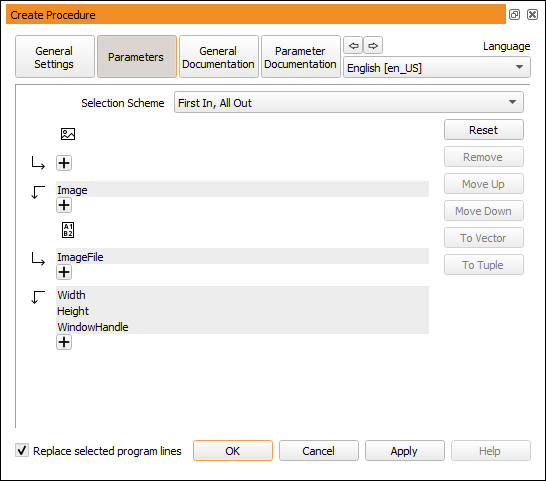
Figure 6.51: Procedure parameters.
This part of the dialog is used for the definition of procedure parameters. HDevelop procedure interfaces have the same structure as HALCON operator interfaces. They can contain parameters of the four categories iconic input, iconic output, control input, and control output in this order. The procedure interface dialog contains four separate areas where the different parameters types can be edited. Each area contains a button for appending new parameters to the parameter list.
When creating a new procedure from selected program lines, HDevelop automatically determines suitable interface parameters for the procedure from the usage of the variables in the selected code. The combo box Selection Scheme determines the suggestion of the procedure parameters.
The classification of variables in the selected program lines is performed separately for iconic and control variables.
If a variable is an input as well as an output variable, it is assigned to the first category, and the corresponding procedure parameter becomes an input parameter.
If, according to the above rules, a variable name would be suggested as an input as well as an output parameter, it becomes an input parameter of the procedure. In addition, an output parameter with the variable name extended by “Out” is created.
As an illustration, the following program lines are selected for a new procedure:
threshold (Image, Region, 128, 255)
connection (Region, ConnectedRegions)
Then, based on the selection scheme All In All Out, the procedure body will read
copy_obj (Region, RegionOut, 1, -1)
threshold (Image, RegionOut, 128, 255)
connection (RegionOut, ConnectedRegions)
To the right of the parameter list, the following buttons are provided:
If you are creating a new procedure, clicking this button removes all entered parameters. If you are editing an existing procedure, the original interface is restored, for example, any changes to the parameters are undone.
Using this button you can remove single parameters from the list. Before clicking this button, focus the corresponding parameter by clicking its text field.
Using these buttons you can alter the order of the parameters. Select a parameter by clicking its text field and use the buttons to change its position.
To move a parameter from one parameter group to another parameter group, follow these steps:
Vector Parameters
HDevelop 12.0 and later versions support vector variables. See section “Vectors” for a detailed description. Vector variables can be used in procedure calls. The following buttons handle the conversion of parameters to vector and back again. Please note that the dimension of a vector in a procedure call must match the dimension specified in the procedure interface. If the procedure expects a vector of tuples, it cannot be called by passing a vector of vectors of tuples.
Vector parameters are distinguished from other parameters by showing the contained type and the dimension next to the parameter name, for example, object {1} for a vector of iconic objects, or tuple {2} for a vector of vectors of tuples.
Set the type of the selected parameter to vector. If the selected variable is of type vector already, its dimension can be increased with this button (label changes to Dim +).
Set the type of the selected parameter to object (iconic parameters), or to tuple (control parameters). If the selected variable is a multi-dimensional vector, its dimension can be decreased with this button (label changes to Dim -).