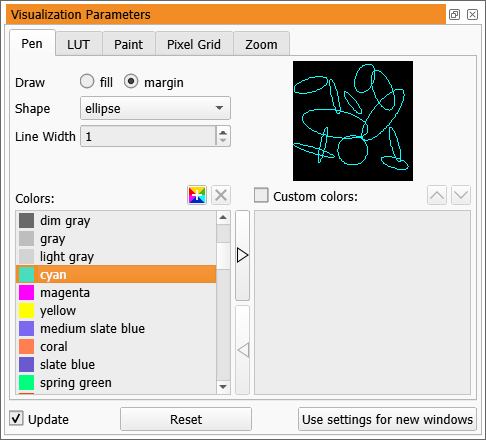
Figure 4.5: Changing the display parameters.
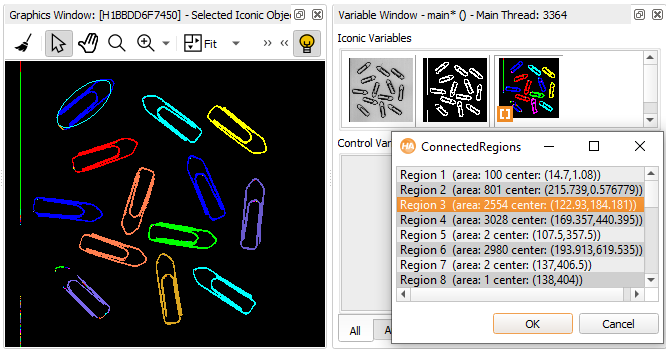
After having executed the three lines of the program, the graphics window displays three layers of iconic variables:
The display properties of images and the topmost region can be adjusted from the context menu of the graphics window. For images, the look-up table (Lut) and the display mode (Paint) can be set. The LUT specifies gray value mappings. Right-clicking in the graphics window and select some values from the menus Lut and Paint. Make sure, the menu entry Apply Changes Immediately is checked. Notice how the display of the image changes while the regions remain unchanged.
The menu entries Colored, Color, Draw, Line Width, and Shape change the display properties of the topmost region. Set Draw to `margin', Color to `cyan', and Shape to `ellipse'. The display of ConnectedRegions (which is the topmost layer) changes accordingly. The Region is still displayed in filled red.
To set many display properties at once click the menu entry Set Parameters. It opens the settings window displayed in figure 4.5.
Clicking the button Reset restores the default visualization settings.
You cannot change the display properties of regions (or XLDs) other than the topmost. What you can do is rebuild the image stack in the graphics window manually by double-clicking iconic variables in the variable window and changing the properties each time another layer is added. The stack is cleared whenever an image is added that uses the full domain. To clear the stack (and the graphics window) manually, click , see figure 6.10.