Threshold
Thresholding is the step to separate the clips from the background, based on the gray value.
- Enter threshold into the operator window. This is both the full name
of an operator and part of other operator names.
- Pressing Return shows a pre-selected list of matching operators with threshold
- Press Return again to confirm the selected operator and show its
parameters.
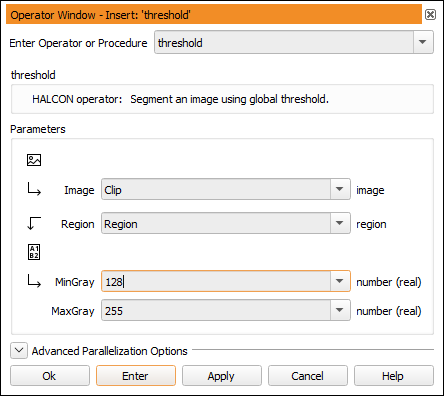
In figure 4.4 you can see that the input parameter
Image is set to Clip automatically. For input
variables with no default value, reasonable suggestions are inferred
automatically by collecting previous output variables of the same type.
Therefore, the name of the most recent matching output parameter will be
suggested (most recent being the closest predecessor of the current program
line). In this example, only Clip is available.
- Set MinGray and MaxGray to 0
and 30, respectively. This will select the dark pixels in the image.
- Click Apply. This button executes the operator without adding it to the
program. Additionally, it keeps the current parameters open for editing. This
way, different settings can be tried and the result can be seen immediately. The
selected pixels are stored in the output
variable Region, which is displayed in the variable window. The region
is an image mask: White pixels are selected while black pixels are not.
- The region is also displayed as an overlay in the graphics window. The selected
pixels are displayed in red by default.
- Click Enter to add the operator to the program window.
Contrary to clicking OK, this does not execute the operator. Note that
the variable Region keeps its value but is no longer displayed in the
graphics window. Also, the PC is not advanced, indicating that the second
line of the program is yet to be executed.
- Adding program lines with Enter is especially useful if some input
parameters use variable names that will be added to the program at a later
time.
Successor
- Click the just inserted program line to select it. You can let HDevelop
suggest operators based on the selected line.
- Open the menu Suggestions ▹ Successors. This menu is filled dynamically to show
typical successors of the currently selected operator. We want to split the
selected pixels into contiguous regions.
- Move the mouse pointer over the menu
entries. The status bar displays a short description of the highlighted
operator. Any operator selected through this menu is
transferred to the operator window.
- Click the operator connection.
- By clicking OK. Two program lines are
executed: The threshold operation and the connection operation.
Clicking OK executes from the PC to the IC.
- In the graphics window, the contiguous regions calculated by the operator
connection are now displayed in alternating colors.