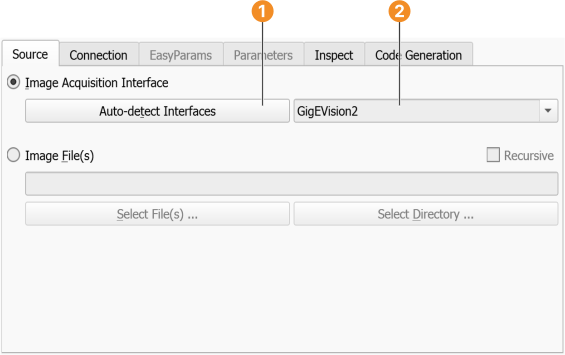
Figure 3.5: Source selection (example).
Select Image Acquisition Interface in the Source tab. The drop-down list below the radio button becomes active. Initially, it lists all image acquisition interfaces supported by HALCON. You can tidy this list by clicking the button Auto-detect Interfaces . HDevelop will then probe all the image acquisition interfaces and remove those that do not respond. Probing the interfaces might cause the system to hang due to wrongly installed drivers or hardware failures. If there are unsaved changes in the current program, HDevelop will display a warning dialog. You are advised to save the changes before you proceed. You can also ignore the warning and proceed, or cancel the process. After the interfaces have been probed, you can select the desired image acquisition interface from the list .
Selecting the entry Help from the menu of the image acquisition assistant will open the online help for the selected image acquisition interface.
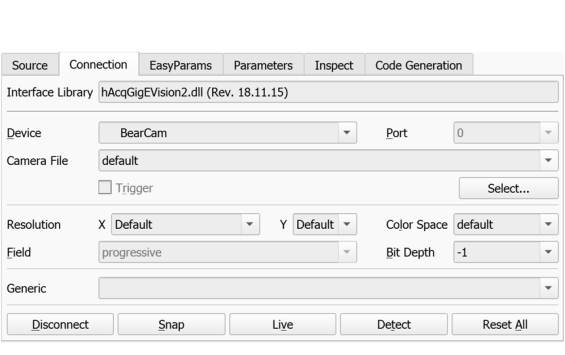
Once an image acquisition interface is selected, its connection parameters are detected and updated in the tab card Connection (see figure 3.6). Here you can specify the device that is connected to the selected image acquisition interface. If, for example, the interface of a frame grabber board with multiple cameras has been selected as the source, the actual device can be selected here. The parameters of this tab card are described in general in the reference section of the operator open_framegrabber; please refer to the HTML page of the selected interface for detailed information (menu Help).
If the acquisition interface File is selected, two buttons become available to select an image file or an image directory, respectively. The File interface also supports AVI files, or sequence files (.seq). The latter are special to HALCON; they contain a list of image file names that will be loaded in succession.
Specify the desired connection parameters and click Connect to establish or update the connection to the actual device. The connection status can also be toggled in the tool bar (see figure 3.3).
You can grab single images with the button Snap, or switch to continuous grabbing mode using the button Live. Live mode can be stopped by clicking the same button again which is now labeled Stop.
Clicking the button Detect attempts to re-detect valid parameters for the currently selected image acquisition interface. Usually, this is done automatically, when the interface is selected from the list on the tab card Source.
The button Reset All sets all connection parameters back to their default values.
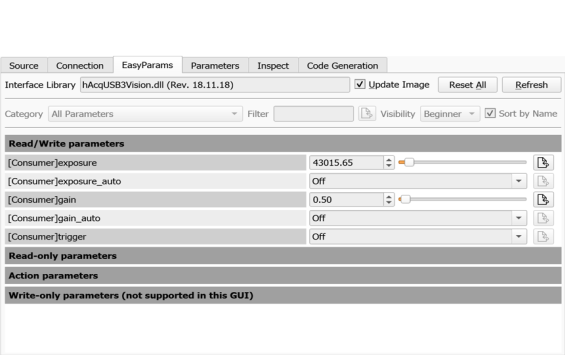
The tab card Parameters contains a list of parameters specific to the selected device. It becomes available once the connection to the device has been activated. See figure 3.7 for an example parameter list. The range of parameters can be limited by category and visibility . Please refer to the HTML page of the selected interface for detailed information. You can click the help button of the assistant to get to the corresponding page automatically.
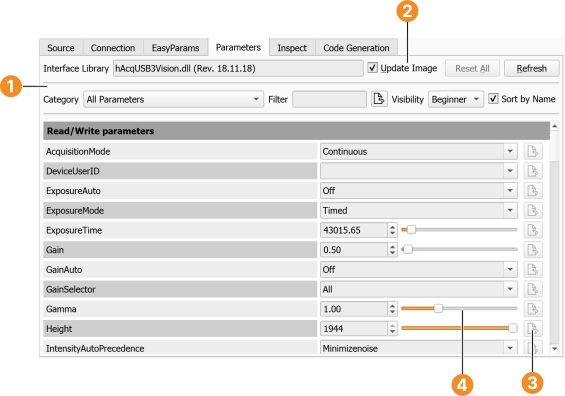
Figure 3.7: Device-specific parameters (example).
Depending on the parameter type, different selection methods are enabled. As an example, parameters with a defined range of values can be specified by dragging a slider or entering the value parametrically. If a value is changed, a reset button to the right is activated . Some parameters provide a check box which attempts to set the parameter automatically if clicked.
If Update Image is checked, parameter changes are immediately reflected in the graphics window by acquiring a new image. The button Refresh updates the list of parameters, which is useful if parameters have side effects. You can reset all parameters to their default values at once by clicking Reset All.
The tab card EasyParams contains a preselection of the most important camera parameters. These parameters are, in most cases, enough to rapidly obtain an acceptable image in the Image Acquisition Assistant. Because the EasyParams rely on the GenICam features of your device, the tab card will only be available for GenICam-based image acquisition interfaces, and after connecting to a device.
Each one of the EasyParams internally controls multiple GenICam features of the connected device. See figure 3.8 for an example parameter list. Refer to Acquisition Interface Reference for detailed information. You can click the help button of the assistant to get to the corresponding page automatically.
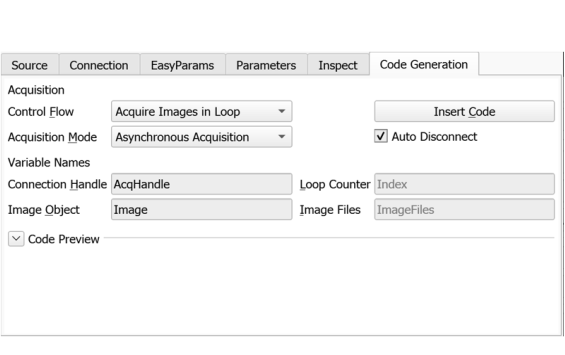
The tab card Code Generation turns the settings made in the other tab cards into executable code. The basic structure of the code and the corresponding variable names can be specified.
Initialization Only: Generate only code to initialize the image acquisition interface with the parameters specified in the other tab cards and to close it down properly. Additional code for image acquisition and processing can be added later.
Acquire Single Image: Also generate code to acquire an image.
Acquire Images in Loop: Also add a loop around the image acquisition code. Further image processing can be added inside this loop.
The image acquisition interface is addressed by a so-called handle. The variable name of this handle can be specified in the text field Connection Handle. The variable name of the acquired image(s) can be set in Image Object.
Click Code Preview to inspect the code. Click Insert Code to generate the code in the program window at the IC.
Here is a code example:
* Image Acquisition 01: Code generated by Image Acquisition 01
open_framegrabber ('GigEVision', 0, 0, 0, 0, 0, 0, 'default', -1, 'default',
-1, 'false', 'default', 'KickerCam', 0, -1, AcqHandle)
grab_image_start (AcqHandle, -1)
while (true)
    grab_image_async (Image, AcqHandle, -1)
    * Image Acquisition 01: Do something
endwhile
close_framegrabber (AcqHandle)