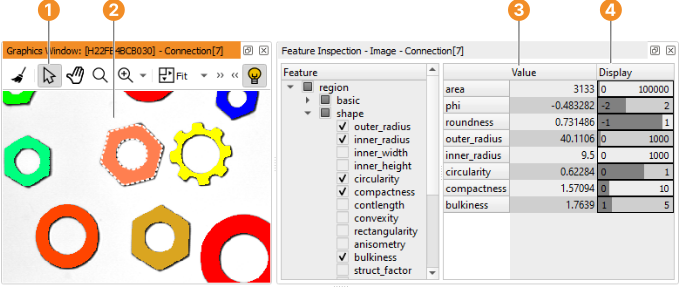
Figure 6.31: Inspection of selected features.
See also: Menu Visualization ▹ Feature Inspection.
This tool is used for the inspection of shape and gray value features of individual regions and XLDs. It can, be used to determine thresholds for operators that select regions based on these features, for example, select_shape or select_gray.
The strategy to determine the data from which to compute the features is very similar to that of the gray histogram inspection window (see section “Gray Histogram Window”). You can display an image or region by double-clicking it in the variable window or you can select a region or an image which is already displayed by single-clicking it. If you display or click into an image, the gray value features of the entire image will be calculated. If you click into a region that is not underlaid with an image, only the shape features of this region will be displayed. If you click into a region that is underlaid with an image or into a region that has gray value information (for example, from reduce_domain or add_channels), both the shape and gray value features of that region will be displayed. Finally, if you have overlaid an image with a region, but click into a part of the image that is outside the region, only the gray value features of the entire image will be calculated.
Use the “select” tool of the graphics window to select a region or XLD. The selected region or XLD is highlighted in the graphics window. The corresponding variable name and index are displayed in the title of the feature inspection window.
The gray value features of a multi-channel image are calculated from all channels independently.
The tree on the left side of the feature inspection window groups the features into categories.
You can select the features to be inspected by ticking the corresponding check boxes in the tree. The selected features are displayed on the right side of the window. For each feature the calculated value of the selected region or XLD is displayed (or the value for the entire image). The current value is also visualized as a gauge in a value range that can be set to the desired values. Select Show Minimum/Maximum, which is available in the context menu of the right side of the window.
See figure 6.31 for an illustration of a feature inspection. The range for the area feature has been set to [2000, 7000]. Individual rings can be inspected by selecting them in the graphics window.
Figure 6.31: Inspection of selected features.
Moving the mouse pointer over a feature value displays a tool tip. It shows the name and short description of the HALCON operator used for the calculation of that value. Using the context menu, you can insert the corresponding operator into the operator window.