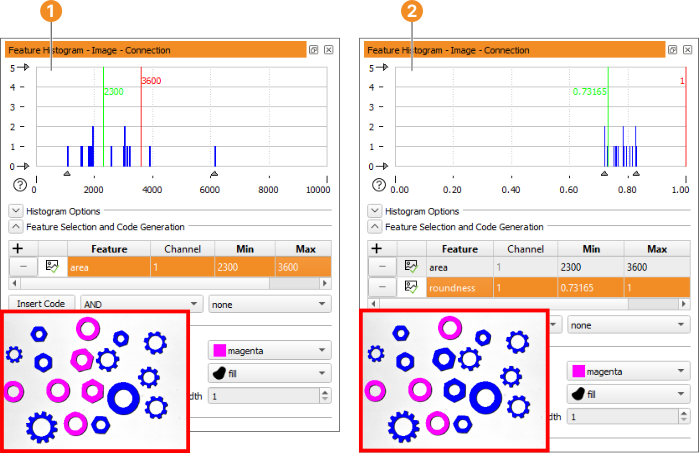
Figure 6.30: Combining different features selections.
See also: Menu Visualization ▹ Feature Histogram.
This window provides a tool for the inspection of feature histograms. In contrast to the gray value histogram, this tool does not inspect individual pixels, but regions or XLDs. For these iconic objects, it displays the distribution of values of a selected feature, for example, the area of an XLD or the mean gray value of the pixels within a region. The feature histogram can also be used to select suitable thresholds for the operators select_shape and select_shape_xld interactively. Similar to the gray histogram tool, the interactive selection can be translated into generated HDevelop program code.
The default feature selection displays the histogram of the area, of the regions or XLDs that were displayed most recently in the currently active graphics window. You can select various features in the combo box Feature. For more information about region features see section “Feature Inspection Window”.
Figure 6.30: Combining different features selections.
See figure 6.30. First, all objects (regions) of a certain size (area) are selected. Then, the selection is refined by adding further restrictions. In this example, the final selection should only include round objects, , regions with a high roundness feature. The following code would be generated if you clicked the button “Insert Code” in this example:
select_shape (Connection, SelectedRegions, ['area','roundness'], 'and',
              [2900,0.72], [3900,0.79462])
Most parts of the tool are built up similarly to the gray value histogram, which is described in detail in section “Gray Histogram Window” (Menu Visualization ▹ Gray Histogram). Reading this description beforehand is highly recommended. In the following, we concentrate on points specific to the feature histogram. An important point regards the “source” of the regions or XLDs: The feature histogram is calculated for the regions or XLDs that were displayed most recently in the graphics window. Thus, if you display an image, and there are no regions or XLDs, the histogram remains “empty”. As soon as you display regions or XLDs on top of an image, the histogram is calculated. If you display regions or XLDs without an image, you can still calculate feature histograms, but only for shape features. Please keep in mind that only the most recently displayed regions or XLDs are the source of the histogram, not all objects currently displayed in the graphics window.
The histogram itself is displayed with the horizontal axis corresponding to the feature values and the vertical axis corresponding to the frequency of the values, for example, to the number of regions or XLDs with a certain feature value.
When comparing feature histograms to gray value histograms, you will note a typical difference: Because in most cases the overall number of regions or XLDs is much smaller than the overall number of pixels, feature histograms often consist of individual lines, most of them having the height 1. Of course, this effect depends on the selected feature: For features with floating-point values, for example, the orientation, the probability that two regions or XLDs have the same feature value is very small, in contrast to features with integer values, for example, the number of holes.
You can influence the calculation of the histogram with the slider Quantization. The selected value is used to discretize the horizontal axis: Instead of determining the frequency of an “exact” feature value, regions with feature values falling within discrete intervals are summed. Graphically speaking, the horizontal axis is subdivided into “bins” with a width equal to the value selected with the slider Quantization.
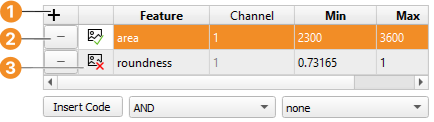
You can add additional features using the + button , or remove features using the - button . As with the gray histogram operations, each selected feature has to be enabled to visualize the selection in the graphics window.