
Figure 6.29: Gray histogram.
The gray histogram window is a tool for the inspection of gray value histograms, which can also be used to select thresholds interactively and to set the range of displayed gray values dynamically. See also: Menu Visualization ▹ Gray Histogram. When opening the tool, the histogram of the image shown in the active graphics window is displayed. When the tool is already open, the following means of sending new image data to the tool are available:
The y-axis represents the frequency of the gray values. The main part of the tool is the plot area, in which the histogram of the image is displayed in blue . Images with three channels are displayed in RGB mode by default. The vertical green and red lines denote the minimum and maximum selected gray value of the histogram, respectively. They can be dragged with the mouse. The gray values on which the two vertical lines lie are displayed next to the lines in the same color.
The x-axis below the histogram represents the gray values in the image. For byte images, the range is always 0...255. For all other image types, for example, real images, the x-axis runs from the minimum to the maximum gray value of the image, and the labeling of the axis is changed accordingly.
The two upward pointing arrows on the x-axis denote the maximum and minimum gray value of the image. The two rightward pointing arrows on the y-axis denote the maximum and minimum frequency of the displayed histogram. This data is also displayed in textual form within the Statistics area of the display. The peak of the histogram, that is, the gray value which occurs most frequently is also displayed in the statistics (see below). For int4, int8, or real images, the peak value is displayed as a value range in the Statistics. The range of input values is divided in quantization steps to obtain a meaningful histogram, and, as a consequence, the histogram's “peak value” can actually represent a whole range of input values.
Whenever new image data is evaluated in the gray histogram window, the adaptation of these values depends on the selected adaptation mode, which can be set independently for horizontal and vertical ranges:
In this mode, the upper and lower boundary of the displayed gray values will always be adapted when a new image is displayed. The maximum and minimum value for the threshold bars (green and red) are also fixed to the maximum gray value of the type of image currently displayed.
Note that if you are using 8-bit and 16-bit images in a mixed mode, the histogram will constantly be reset. It is not possible to display a 16-bit image, set thresholds, then display an 8-bit image and keep the threshold values of the 16-bit image.
In adaptive mode, the displayed data range depends on the image type:
In this mode, only the upper boundary of the displayed gray values will be adapted and it will only increase, but never decrease. This for instance is useful when first inspecting 8-bit images, but then switching to 16-bit images. In this situation, the histogram will display the 16-bit gray value range after displaying the first 16-bit image.
In this mode, the minimum and maximum value of the threshold bars are not limited to the currently displayed image type. The reason is simple: This mode allows you to inspect images of a different data type with the same threshold values. If the values were always limited, the histogram would “forget” the values like in the adaptive mode.
In this mode, the boundaries are not adapted automatically (but can be changed manually). This mode is also suitable for scenarios with images of mixed data types.
Like in the mode increasing, the minimum and maximum value of the threshold bars are not limited to the currently displayed image type.
These controls define the visible area of the histogram and the way it is displayed.

Range Selection and Code Generation
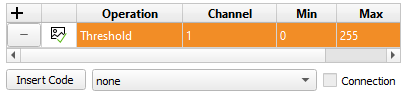
See section “Interactive Visual Operations”.

Input Window specifies the graphics window of which the gray value histogram is displayed.
Output Window specified the graphics window that is used for the visualization of threshold or scale operations (see below). The visualization style is specified with the following settings:
Sometimes, it is desirable to suppress the updating of the histogram when new image data is available, for example, if you want to select thresholds for a gradient image, but want to visualize the original image along with the segmentation (see below). In that case you can freeze the histogram by unchecking Input Window. The currently displayed histogram is preserved until Input Window is checked again in which case the histogram will be re-calculated from the selected graphics window.