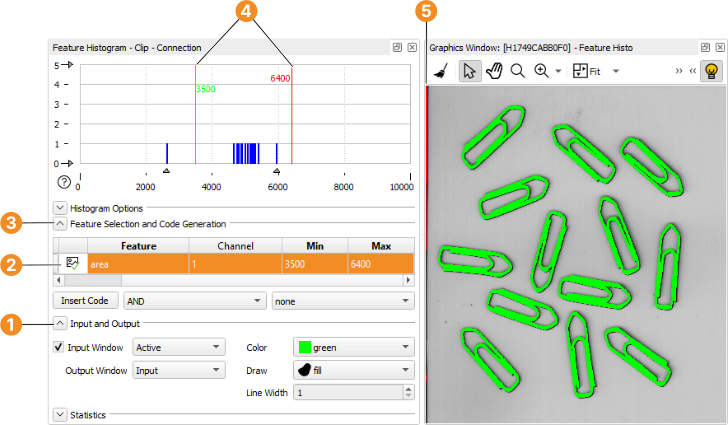
Figure 4.8: Selecting regions with a similar area in the feature histogram.
Inspecting the variable ConnectedRegions after the changed threshold operation yields a much better result. Still, a contiguous area at the left edge of the image is returned ; see figure 4.8. To obtain only the regions that coincide with the clips, we need to further reduce the found regions based on a common criterion. Analogous to the gray histogram tool, which helps to select regions based on common gray values, HDevelop provides a feature histogram tool, which helps to select regions based on common properties or features.
Figure 4.8: Selecting regions with a similar area in the feature histogram.
Click Visualization/Tools → Feature Histogram to open the tool. Make sure Feature Selection and Code Generation is visible in the histogram window . The column Feature allows you to select the feature that the region selection will be based on. The default feature is “area”, which is adequate in this case: The actual clips are all the same size, thus the area of the regions is a common feature. In the feature histogram the horizontal axis corresponds to the values of the selected feature. The vertical axis corresponds to the frequency of certain feature values.
Similar to the gray histogram window, you can visualize the selected regions. The regions whose area falls between the values Min and Max, which are represented by the green and red vertical lines, respectively. Click the icon next to the selected feature (area) to enable the visualization.
Specify the parameters in the Input and Output section of the feature histogram window . Drag the green and red line to see how this affects the selected regions. In the histogram we can see that in order to cover all the clips, we can safely select regions whose area is between, say, 4100 and the maximum value in the histogram. When you are satisfied with the selection, click the button Insert Code. The following line (with similar numeric values) will be added to your program at the position of the IC:
select_shape (ConnectedRegions, SelectedRegions, 'area', 'and', 4100, 5964)
Run the program, and inspect the output variable SelectedRegions. The regions corresponding to the clips are now determined correctly. To obtain the orientation and the center of gravity of the clips, add the following operator calls to the program:
  orientation_region (SelectedRegions, Phi)
  area_center (SelectedRegions, Area, Row, Column)
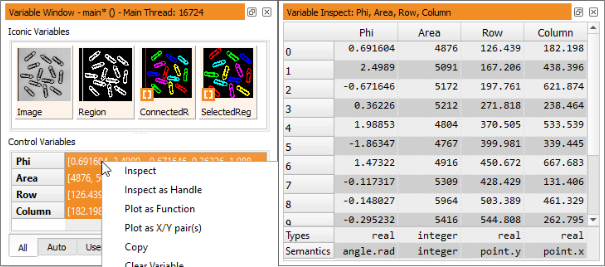
The operator orientation_region returns a tuple of values: For each region in SelectedRegions a corresponding orientation value in Phi is returned. The operator area_center in the same way returns the area, row and column of each input region as tuples. Again, run the program and inspect the calculated control variables. You can inspect multiple control variables in one inspection window. This is especially useful if the control variables all relate to each other as in this example. In the variable window select all control variables (hold down the Ctrl key), and right-click Inspect (see figure 4.9).