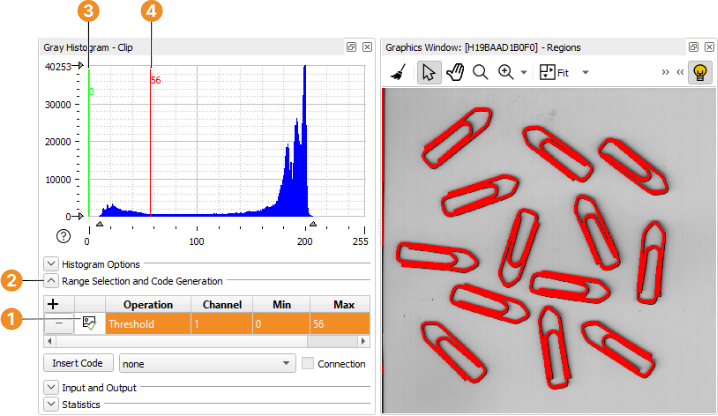
Figure 4.7: Determining threshold bounds interactively using the gray histogram.
Figure 4.7: Determining threshold bounds interactively using the gray histogram.
Click Visualization/Tools → Gray Histogram to open a tool for the inspection of gray value histograms. One of its uses is to determine threshold bounds visually. Because the graphics window currently displays only regions, the gray histogram is initially empty. Double-click the Clip icon in the variable window to re-display the original image and watch its gray histogram appear.
Make sure Range Selection and Code Generation is visible in the histogram window, see figure 4.7. Select Threshold in the column Operation of the gray histogram window, and click the icon next to Threshold to visualize the operation. Now, you can try different threshold bounds by altering the values in Min and Max or by dragging the green and the red line in the histogram area. Any changes to these values are immediately visualized in the active graphics window. The values 0 and 56 seem suitable for the lower and upper bounds, respectively.