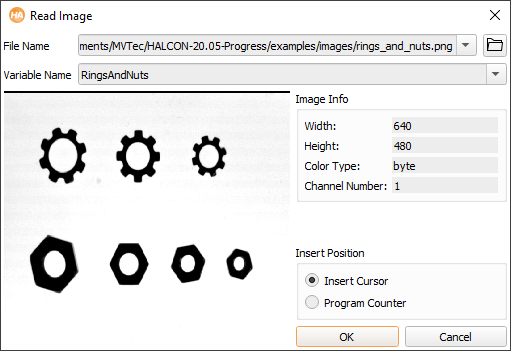
Figure 3.1: Read Image Dialog.
Especially during prototyping phase you often have a set of sample image files to work from. HDevelop supports an extensive variety of image formats that can be loaded directly (see read_image in the Reference Manual).
The easiest way to read an image is to simply drag it from a file browser to the HDevelop window and drop it there. When the file is dropped, HDevelop opens the dialog Read Image (see figure 3.1).
This dialog displays the full path of the image and automatically proposes a variable name derived from the file name. This name can be edited, or another iconic variable name from the current program can be selected from the drop-down list.
Furthermore, a preview of the image and basic image properties are displayed in the dialog (width, height, color type, and number of channels). If you picked the wrong image, you can select another one from the same directory by pressing the button next to the file name. This will open a file browser native to the operating system. On Windows, you may be able to switch to thumbnail view in this dialog. When another image is selected, the dialog is updated accordingly.
When you click the button OK, the instruction read_image is added to the current program. With the setting of Insert Position you determine where the instruction will be put: At the IC or the PC. If you changed your mind about reading the selected image at all, click Cancel.
Drag-and-Drop of Multiple Images
You can also drag multiple images or directories containing multiple images to HDevelop. HDevelop will then open an image acquisition assistant with the images preselected. See section “Image Acquisition Assistant” for further information.
Images From Selected Directories
Select File ▹ Read Image... to get the dialog described above.
The first matching image file is displayed as a thumbnail preview along with its width, height, color type and number of channels.
Alternatively, open a file selection dialog by selecting a predefined directory from the File Name combo box or clicking the browse button. The latter will start browsing in the current working directory, or in the last used directory. Depending on the operating system you may be able to switch to a thumbnail view in the file selection dialog.
After selecting a file name, click OK to load the image into HDevelop. The operator read_image is inserted at the specified insert position (IC or PC). The specified iconic variable is updated in the variable window and the image is displayed in the active graphics window. Clicking Cancel aborts the operation.
By default, an absolute path to the selected image is inserted. You can instruct HDevelop to use relative path names (see General Options ▹ General Options in the preferences).