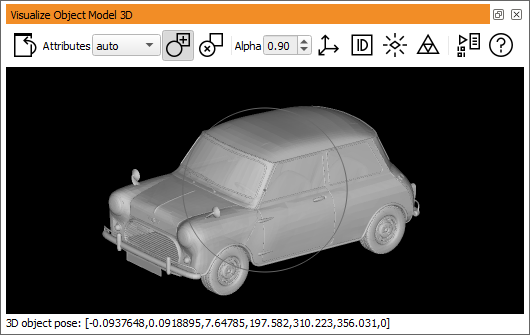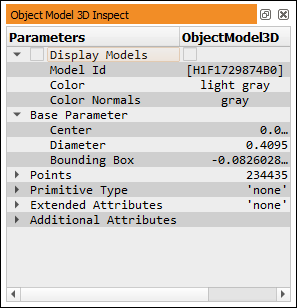
Figure 6.94: Parametric inspection of a 3D object model.
See also: disp_object_model_3d.
3D object models are referenced by control variable handles with the semantic type object_model_3d. Double-clicking such handles opens a special inspection window that shows the parametric properties of the contained 3D object model(s).
As an example, the following line of code loads one of the supplied 3D object models from disk and stores it in ObjectModel3D:
read_object_model_3d ('bmc_mini', 'mm', [], [], ObjectModel3D, Status)
After executing this line, double-clicking the control variable ObjectModel3D opens the inspection window from figure 6.94. See get_object_model_3d_params for a description of the displayed properties.
To visualize a specific 3D object model or all 3D object models (in case the handle contains multiple models), select the checkbox of the corresponding model ID or the checkbox next to Display Models, respectively. The selected models are then visualized in a special visualization window shown in figure 6.95.
The slots Color and Color Normals of the parametric inspection window define the color of the displayed model(s) or the optionally displayed normals, respectively. These colors can be changed by double-clicking the corresponding slot and selecting a color name from the drop-down list. You can also enter a valid color name or an arbitrary hex triplet into the color slots.
The 3D object model visualization window supports the following interactions:
| drag inside circle | rotate around X/Y axis |
| drag outside circle | rotate around Z axis |
| mouse wheel | zoom in and out |
| Shift+drag | zoom in and out |
| Ctrl+drag | pan 3D object model(s) |
The tool bar buttons control the way the 3D object models are displayed: