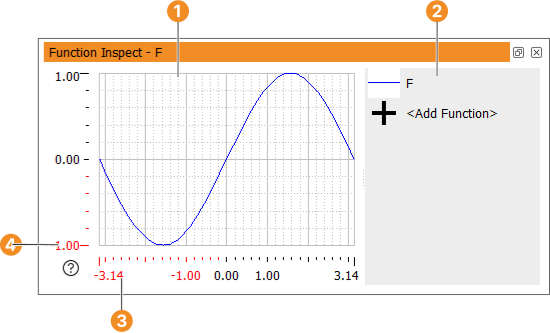
Figure 6.90: Inspecting a variable of semantic type function_1d.
Control variables with the semantic type function_1d are displayed as a function plot by default upon inspection. It is also possible to plot the data of variables containing arbitrary numeric tuples (length > 1) by selecting Plot as Function from the context menu of the variable window. It is assumed that these variables contain y values for equidistant x values. Finally, you can select two variables containing numeric tuples of equal length to generate a scatter plot (see below).
Example:
X := [rad(-180) : rad(10) : rad(180)]
SinX := sin(X)
create_funct_1d_pairs (X, SinX, F)
The variables X and SinX store discrete input values for the sine function in the range [ − π, π]. These values are fed into the operator create_funct_1d_pairs to create the function variable F with the semantic type function_1d.
Double-click F in the variable window to generate a function plot (see figure 6.90).
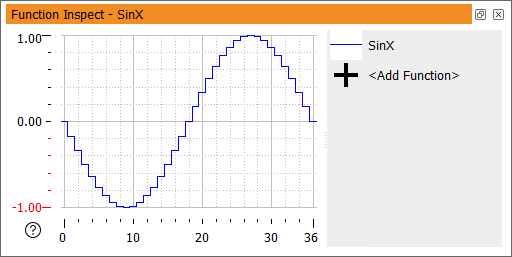
Right-click SinX in the variable window and select Plot as Function to generate a function plot of the y values (see figure 6.91). Note that the tuple index (0 .. 36) is used to set the x range. The plot style of numeric tuples defaults to steps. This can be changed from the context menu of the plot list (see below).
The zoom level of the function plot can be adjusted with the mouse wheel over the plot area or one of the axes. The displayed part can be panned by dragging the plot area or one of the axes, and adjusted by dragging the axis limits. Additional display settings are available in the context menus (see below). You can add additional variables to the current function plot window by clicking <Add Function> in the plot list.
| Action | Shortcut | Description | |
|
| Reset Bounds | w or Ctrl+Shift+W | Set width to default. |
|
| Set 1:1 Aspect Ratio | Set x range to same scale as y range. | |
|
| Linear Scale | Set x-axis to linear scale. | |
|
| Logarithmic Scale | Set x-axis to logarithmic scale. | |
|
| User-defined Range | Freeze x range. | |
|
| Increasing Range | Let x range grow on demand. | |
|
| Adaptive Range | Let x range grow or shrink on demand. | |
| Action | Shortcut | Description | |
|
| Reset Bounds | h or Ctrl+Shift+H | Set height to default. |
|
| Set 1:1 Aspect Ratio | Set y range to same scale as x range. | |
|
| Linear Scale | Set y-axis to linear scale. | |
|
| Logarithmic Scale | Set y-axis to logarithmic scale. | |
|
| User-defined Range | Freeze y range. | |
|
| Increasing Range | Let y range grow on demand. | |
|
| Adaptive Range | Let y range grow or shrink on demand. | |
| Action | Shortcut | Description | |
|
| Reset Bounds | r or Ctrl+Shift+R | Reset width and height to default. |
|
| Zoom In Mode | + or Ctrl+Shift++ | Zoom in (both axes). |
|
| Zoom Out Mode | - or Ctrl+Shift+- | Zoom out (both axes). |
|
| Enter Bounds... | b or Ctrl+Shift+B | Enter vertical and horizontal bounds parametrically. |
|
| Show Mouse Position | p or Ctrl+Shift+P | Visualize the mouse position with a cross hair. |
|
| Show Function Value At X | x or Ctrl+Shift+X | Display the function value at horizontal mouse position. |
|
| Show Function Value At Y | y or Ctrl+Shift+Y | Display the function value at vertical mouse position. |
|
| Show Background Grid | g or Ctrl+Shift+G | Display grid lines in the background of the plot area. |
|
| Insert Plot Code for Graphics Window | Ctrl+Shift+V | Generate code to plot the current view in a graphics window. |
| Action | Shortcut | Description | |
|
| Color | Set the plot color of the corresponding variable. | |
|
| Thickness | Set the plot thickness of the corresponding variable. | |
|
| Style | Set the plot style of the corresponding variable (see below). | |
|
| Inspect as Tuple | Display the values of the corresponding variable. | |
|
| Fit Graph | Adjust bounds to view all values of the corresponding variable. | |
|
| Remove | Remove the corresponding variable from the function plot. | |
A scatter plot plots values of one variable against values of another. Both variables must have the same length. There are two ways to generate a scatter plot:
The context menu of the plot list contains additional entries for the variables used for a scatter plot:
| Action | Shortcut | Description | |
|
| Swap (X, Y) | Swap the variables used for the scatter plot. | |
|
| Ungroup | Ungroup the variables used for the scatter plot and plot each on its own. | |
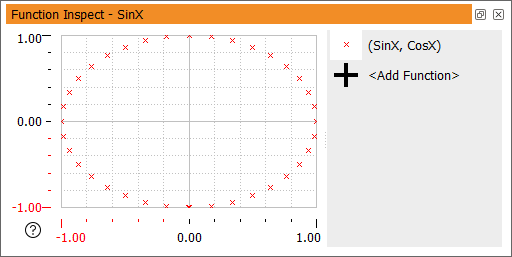
As an illustration we add the following assignment to the above code lines, and select the variables SinX (sine function) and CosX (cosine function) to generate the scatter plot from figure 6.92.
CosX := cos(X)
Note that the aspect ratio of the plot is chosen to match the window size. To get a correct aspect ratio (in this case: a round plot), select Set 1:1 Aspect Ratio from the context menu of either the x- or the y-axis.
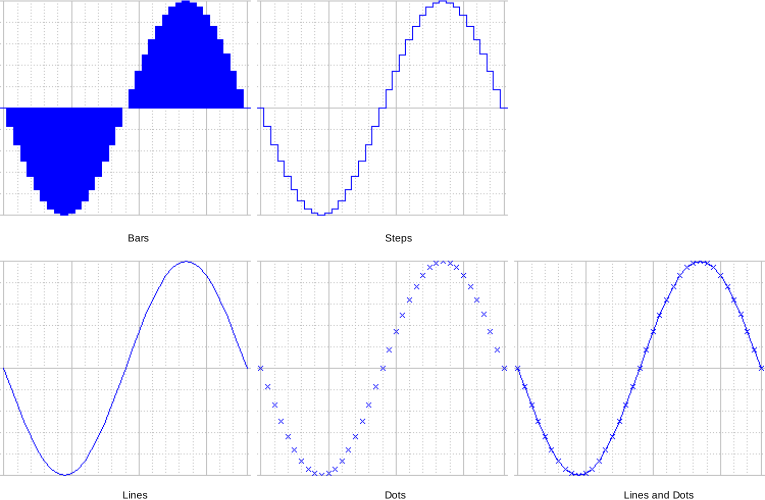
The available plot styles are illustrated in figure 6.93.
The first two styles (bars and steps) are only available for plots of numeric tuples against their index. The other styles (lines, dots, lines and dots) are available for all function plots.