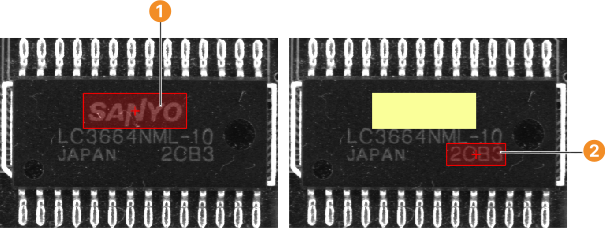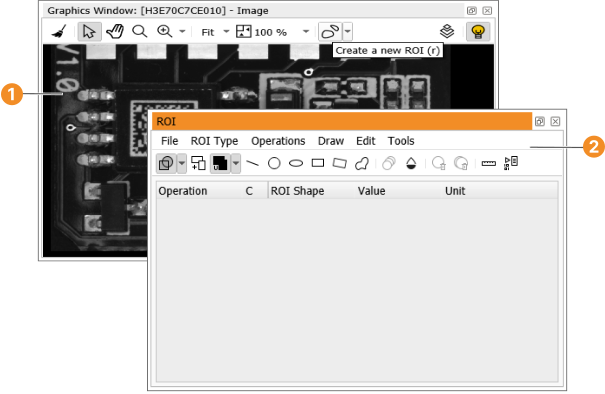
Figure 6.74: Base image for the creation of an ROI.
Using the ROI window you can draw and manage multiple figures interactively. These figures consist of an arbitrary collection of geometric elements or free-form drawings. Ultimately, these figures are interpreted as ROIs or XLDs that can be used in your current program by generating the appropriate program lines. You can also perform simple interactive measurements in that you specify a known dimension and thus translate pixels to real-world units.
As an introductory example, the image shown in figure 6.74 shall be used as the base image for a completeness check application. To determine the location and the alignment of the chip in subsequent images, parts of its imprint will be used as a landmark. Therefore, an ROI has to be created. It would be cumbersome to generate an ROI based on written-down pixel coordinates. Instead, it is much easier to draw a figure right into the image and let HDevelop generate the corresponding instructions.
Generating an ROI Interactively
This will open the dialog shown in figure 6.74 which will act as a tool box for your new figure.
By default, the figure type is set to ROI (cf. in the tool bar), which is just what we want for this example.
Click and hold inside the graphics window to draw an initial rectangle.
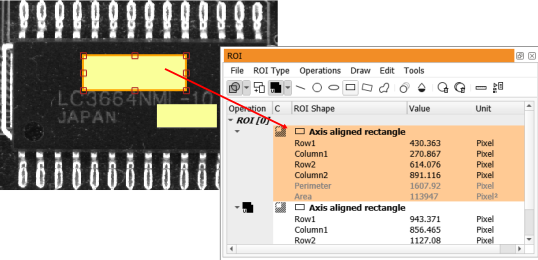
You can modify the rectangle by dragging its sides or corners. Make the rectangle match the big label on the chip (see figure 6.75 ).
Click the right mouse button to confirm the rectangle and it will be created in the toolbox.
gen_rectangle1 (ROI_0, 197.724, 233.807, 235.947, 360.162)
gen_rectangle1 (TMP_Region, 260.088, 326.066, 284.229, 398.269)
union2 (ROI_0, TMP_Region, ROI_0)
In this example, the iconic variable ROI_0 corresponds to the region defined by the two rectangles.
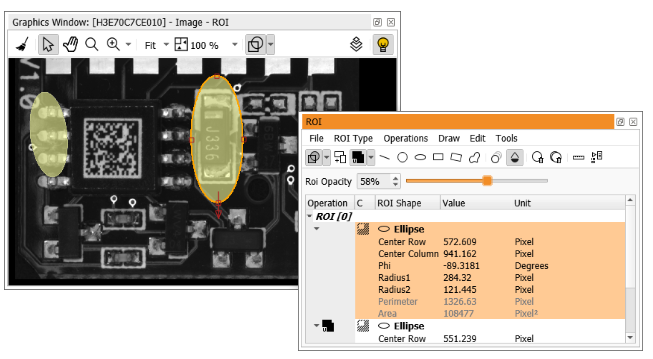
You can adapt the opacity of the ROIs by dragging the slider.
Figure changes are not recorded in the undo buffer and cannot be reverted. However, you can save all figures in the tool box and load them later using the menu File.
You can make changes to a figure by clicking its individual constituent parts to select them. In figure 6.77, the upper rectangle is selected and can be modified by dragging its handles. You can also edit the selected element in the mode it was created in by clicking (right-click to confirm the changes).
The corresponding values in the tool box will be updated accordingly. You can also edit the values in the tool box parametrically. The parameters Perimeter and Area are calculated depending on the other parameters of the rectangle. They can not be modified directly and are therefore grayed out.
If you click the upper rectangle twice, the entire figure will be selected and can be dragged with the mouse.
In general, if the figure consists of overlapping elements, the first click will select the topmost element. Each following click will select the element below the selected one. When the bottommost element is reached, the next click will select the entire figure. In case of a very complex figure with many stacked elements it might be easier to select a distinct element by clicking the corresponding data block in the tool box.
Delete Elements From the Figure
To delete the selected element, press Del, or click . All figures can be deleted by clicking .
You can also add additional geometric elements to the figure by clicking the corresponding icons on the tool bar.
Add Additional Figures to the Tool Box
As already mentioned, the tool box supports the creation of multiple figures. Click to add a new figure to the tool box. When you subsequently draw new elements, they will be added to the new figure. Multiple figures are converted to an object tuple when generating code.
The tool box supports three modes of operation. The modes can be selected from the drop-down button of the tool bar or from the menu ROI Type:
For each element a masking mode can be toggled independently by clicking the corresponding icon in the tool box:
The default masking mode selects the inside of the element, for example, the inner area of a circle.
The complement masking mode selects the outside of the element, for example, everything outside of a circle.
Depending on the selected mode, different geometric elements are available in the tool box:
| Tool | Type | ROI | XLD | Path |
| line | X | X | X | |
| circle | X | X | - | |
| circular arc | - | X | X | |
| ellipse | X | X | - | |
| elliptic arc | - | X | X | |
| axis aligned rectangle | X | X | - | |
| rotated rectangle | X | X | - | |
| arbitrary region | X | X | - | |
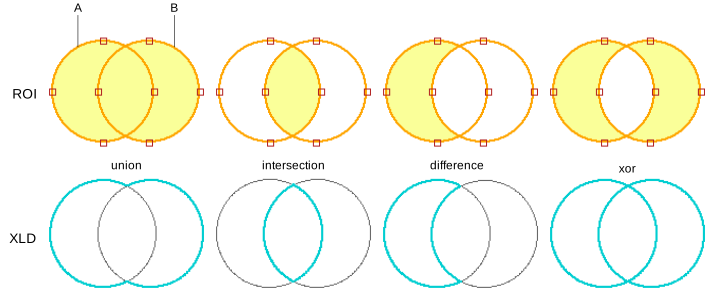
The elements of a figure are connected by set operations. In the case of ROIs, applying the set operations determines the final face of the compound region. For closed-contour XLDs, applying the set operations determines the final contour of the compound XLD. Set operations are not meaningful and therefore not available in path mode.
The set operation of the next new element can be selected from the drop-down button of the tool bar or the menu Operations. The set operation of an existing element can be changed by clicking the corresponding icon in the element's data block.
The following set operations are available (see figure 6.78 for an illustration):
Usually, all dimensions in the tool box are given in pixels. To convert pixel values to real-world dimensions, a simple calibration can be performed, that is a known dimension has to be specified.
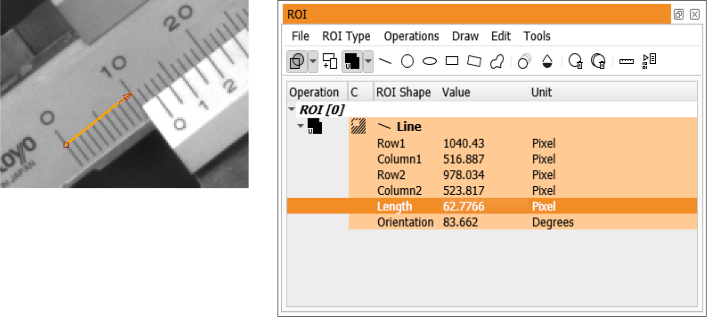
See figure 6.79 for an example. The length of the line is known, so it can be used for the calibration.
Now, all dimensions are given in the selected unit.