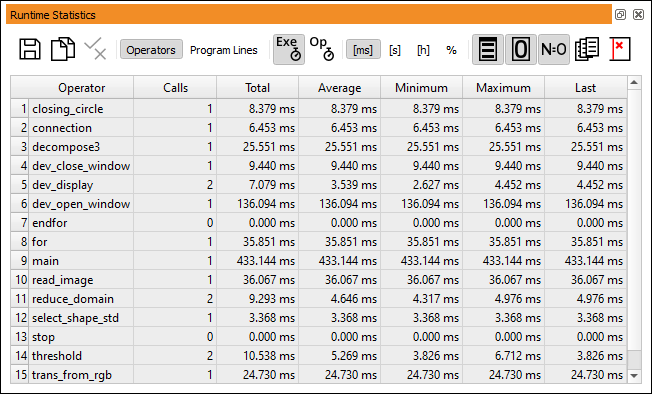
This window displays the accumulated profiling data of the procedure that is
currently displayed in the active program window (or all procedures, see
below).
The table rows can be sorted by clicking the corresponding headers.
Two different display modes are available:
算子
In this mode, the profiling data is displayed per operator/procedure call,
that is, multiple calls of the same operator/procedure are summarized.
Note that the sum of all calls that comprise the program can be less than
the measured duration of the main program as the latter also includes
the overhead of the operating system.
Program Lines
In this mode, the profiling data is displayed per program line.
Figure 6.64: Runtime statistics.
Save the runtime statistics as a plain text file (.txt or .csv).
Each line contains a table row, and the columns are separated by tabs.
Copy the selected entries to the clipboard.
If no entries are selected, the entire table is copied.
Toggle the display status of the selected profiler lines (see section “Selective Profiler Display”).
This option is only available if the display is set to “Program Lines”.
Show execution time.
Show operator time.
ms
Display times in milliseconds.
s
Display times in seconds.
h
Display times in hours.
%
Display values as percentages.
If percentages are selected, the values refer to the accumulated times of the
entire program, the run-time of main corresponds to 100%.
Include runtime statistics of procedures in display.
Include runtime statistics of operators in display.
Include program lines with zero calls.
Usually, the runtime statistics window displays the profiler data of the
procedure that is currently displayed in the active program window.
Turn this button on to show the profiling data of all procedures.
In general, deactivated profiler lines are not listed in the runtime statistics
window (see section “Selective Profiler Display”).
If this button is on, deactivated profiler lines will be displayed in light
gray so that they can be activated again.