The parameter display is the main part of the operator window.
If you have selected an operator or procedure call, HDevelop displays its
interface, with the name, value, and semantic type of each parameter.
You can switch between a one-column (default)
or two-column layout of the parameter display.
In the two-column layout, the iconic parameters are shown on the left and the
control parameters on the right.
In the following description, “column” refers to the order of the entries,
which is independent of the layout.
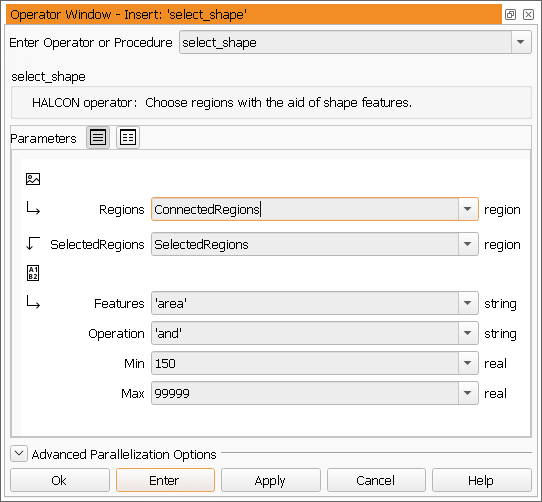
In the first column of the parameter display the parameter types are indicated
by icons. Note that icons are not repeated if a parameter is of the same
type as its predecessor.
In the second column of the operator window you find the parameter names.
The third column consists of the text fields, which contain variable names
in case of iconic and control output parameters and expressions in case of
control input parameters.
If you want to change the suggestions offered by the system (variable names
or default values), you can do so either manually or by clicking the arrow
button connected with the respective text field.
This opens a list containing a selection of already defined variables and
other reasonable values from the operator knowledge base. By clicking the
appropriate item, you set the text field and the list disappears.
For the operators open_framegrabber, set_framegrabber_param, and
get_framegrabber_param, the value list of certain parameters is dynamic:
It depends on the selected image acquisition interface. An even more
reasonable parameter suggestion is given if the corresponding handle
is opened.
If this dynamic behavior is undesired, it can be disabled in the preferences;
see section “General Options▹Experienced User”.
This column can also contain action buttons for
special semantic types, for example, a button to browse the file system for the
parameters that expect a file name.
The fourth column indicates the parameter's default semantic type and,
optionally, its data type in parentheses.
Figure 6.25: Specifying parameters for the operator select_shape.
Please refer to the following rules on how parameters obtain their
values and how you can specify them:
Iconic input parameters
Possible inputs for these parameters are iconic variables of the
corresponding type. If there is no need to execute the operator or procedure
call immediately, you can specify new variable names, meaning, names, that
do not already exist in the variable window, but will be instantiated later
by adding further operators or procedure calls to the program body. In any
case, you have to specify iconic parameters exclusively with variable
names. It is not possible to use expressions.
Iconic output parameters
These parameters contain default variables, which have the same names as the
parameters themselves. If a variable with the same name as the output
parameter is already instantiated, a number is added to the name to make it
unique. Because the parameter names characterize the computed result very
well, you can adopt these default names in many cases. Besides this, you are
free to choose arbitrary names either by yourself or by opening the list (see
above). If you use a variable that already has a value, this value is
overwritten with the new results. It is
possible to specify a variable both in an input and output position.
Control input parameters
These parameters normally possess a default value. As an
alternative, you can use the text field's button to open a combo box
and to select a suggested value. In addition, this combo box
contains a list of variables that contain values of the required
type. A restriction of proposed variables is especially used for
parameters that contain data like file, image acquisition, or OCR
handles.
Input control parameters may contain constants, variables, and expressions.
Common types are integer numbers (integer), floating-point numbers
(real), boolean values (true and false), character strings
(string), and handles (handle).
You can also specify multiple values of these types at once by using
tuples. This is an array of values, separated by commas
and enclosed in square brackets. You can build up expressions with
these values. You can
use expressions in HDevelop similar to the use of expressions in C or in
Pascal. You will find a detailed description in section “Expressions for Input Control Parameters”.
Control output parameters:
These parameters are handled in the same way as iconic output
parameters. Their defaults are named as their parameter names.
Other possibilities to obtain a control output variable name are
either using the combo box or specifying variable
names manually. You cannot use any expressions for these
parameters.
After discussing what can be input for different parameters, it is explained
how this is done. Nevertheless, you have to keep in mind that you need to
modify a parameter only if it contains no values or if you are not satisfied
with the suggested default values.
Text input:
Give the input focus to a parameter field by clicking into it.
Now, you can input numbers, strings, expressions, or
variables. There are some editing functions to help you doing
input: Backspace deletes the character to the left and
Delete deletes the one to the right. You can also select a
sequence of characters in the text field using the mouse or holding Shift
and using the cursor keys. If there
is a succeeding input, the marked region is going to be deleted
first and afterwards the characters are going to be written in the
text field.
See appendix “Keyboard Shortcuts” for a summary of the keyboard mappings.
Combo box selection:
Using this input method, you can obtain rapid settings of variables
and constants. To do so, you have to click the button on the text
field's right side. A combo box is opened, in which you can select
an item. Thus, you are able to choose a certain variable or value
without risking erroneous typing.
Previous entries are deleted. Afterwards, the
combo box is closed. If there are no variables or appropriate
values, the combo box remains closed.