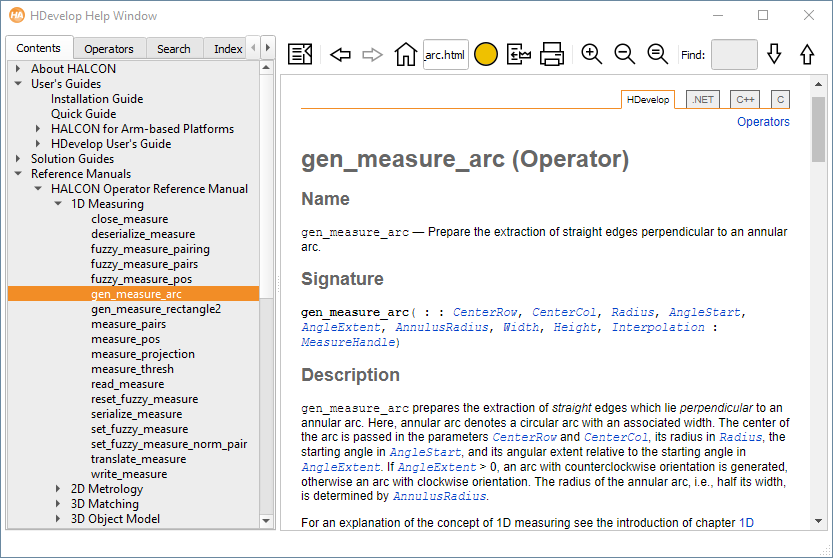
Figure 6.21: Help window with the contents tab card.
The help window provides access to HALCON's online documentation. The window is split into two areas: On the left, navigational panels are available as tab cards. They are described below. Please note that you can press the Up and Down keys in the navigational panels to select the previous and the next entry, respectively. This allows you to examine, for example, search results quickly. The main area displays the actual hypertext content. The size of the two parts of the help window can be adjusted by dragging the dividing line.
Parts of the documentation are available in PDF format. The help window does not display these files itself but launches the default viewer when a PDF link is being followed. If a link to a PDF file appears in the navigation (either as the result of a full-text search or from the selection of index keywords), it will be marked by a PDF icon. A single click will select the entry and display a link to the file in the contents area. A double-click will open the corresponding file in the external viewer. This way, you can quickly browse the search or index results in the navigation without accidentally running the PDF viewer.
This tab card presents the chapters and sections of the online documentation as a hierarchical tree. Click a node of the tree to display the associated document. See figure 6.21 for an example.
This tab card lists all operators in alphabetical order. Click an operator name to display the corresponding page from the Reference Manual. Enter any name into the text field Find to show only operators matching that name.
Enter a search query into the text field, and click Find to start a full-text search. The check boxes below the text field indicate the search scope. For example, to make sure only HTML matches are displayed, deselect the check box PDF. The search result is displayed below the query. The rank (in percent) indicates how well each found document matches the query.
The query can consist of one or multiple words. HDevelop will find all documents that contain any of the specified words.
To search for a phrase, enclose it in double quotes:
"radiometric calibration"
Precede all mandatory words with a plus sign (+). For example, to find all documents that contain filter and gauss, enter:
+filter +gauss
You can exclude specific words from your search result. To find all documents that say anything about filters except Gaussian filters, enter:
filter -gauss
This tab card provides access to HALCON operators and relevant sections of the documentation through index entries. The list of index entries can be filtered by entering a string into the text field Find. If you enter multiple words, only index entries matching all the words are displayed.
When you select index entries from the list, the related operator names and links to the corresponding parts of the documentation are displayed below the index entries. The subtopics can be navigated using Ctrl+Up and Ctrl+Down to select the previous and the next match, respectively.
This tab card lists all user-defined bookmarks. You can add the currently displayed document to the list by clicking the button Add. To remove a bookmark from the list, select it and click the button Delete.
| Action | Shortcut | Description | |
|
| Locate page | Ctrl+L | Display the location of the current page in the tree of the contents tab. |
|
| Back | Alt+Left | Go back in the browse history. |
|
| Forward | Alt+Right | Go forward in the browse history. |
|
| Home | Alt+Home | Go to the starting page of the HALCON Reference Manual. |
|
| Bookmark | Ctrl+D | Add the currently displayed document to the tab card Bookmarks. |
|
| Insert operator into program | Alt+Return or Alt+Enter | If the currently displayed document is the reference page of a HALCON operator, enter this operator into the operator window. |
|
| Print... | Ctrl+P | Open the operating system dependent printer selection dialog to print the currently displayed page. |
|
| Increase Zoom Factor | Ctrl++ | Increase the font size of the help window. |
|
| Decrease Zoom Factor | Ctrl+- | Decrease the font size of the help window. |
|
| Reset to normal size | Ctrl+0 | Reset to normal size |
|
| Find | Ctrl+F | Enter a word or substring to find it in the currently displayed document. The first match is highlighted as you type. If no match is found, the text field blinks shortly. You can use the cursor keys (down and up) to highlight the next match or the previous match, respectively. Alternatively, you can use the following two buttons. |
|
| Next | Down | Highlight the next match. |
|
| Previous | Up | Highlight the previous match. |
|
| Next Link | Tab | Highlight the next link on current page. |
|
| Next Link | Shift+Tab | Highlight the previous link on current page. |
|
| Jump to Link | Return | Jump to the highlighted link. |