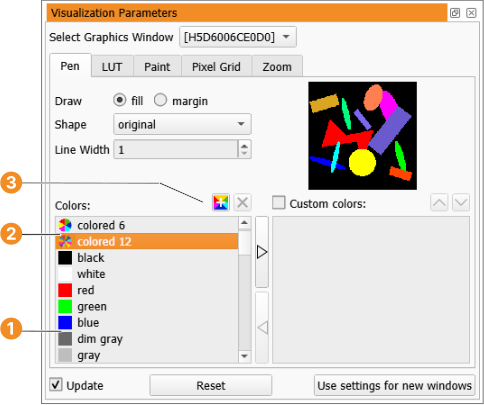
Figure 6.12: Pen settings.
The pen settings specify the drawing mode, filled or outlined, the shape, the line width, and the colors of regions and XLDs.
For regions the draw mode can be set to filled (item fill) or outlined (item margin).
The parameter Shape, default is original specifies the presentation shape for regions. You can display not only the region's original shape but also its enclosing rectangle or its enclosing circle, etc.
The setting of Line Width applies to XLDs and regions in draw mode margin.
The color of the regions/XLDs can be set to one of the named colors. If you select one of the color sets, each region or XLD will be displayed in an alternating color from a set of 3, 6, or 12 colors. This visualizes the connectivity of different regions in the graphics window.
Click the “add” button to define additional colors. Colors are specified by hue, saturation, value, or by giving the red, green and blue values (see figure 6.13). User-defined colors are added to the list of named colors. They can be removed by selecting them and clicking the “remove” button.
You can also define your own custom color sets: Add selected colors to the list of custom colors by clicking the “right” button, or remove them by clicking the “left” button. The check box next to Custom colors: specifies if the custom color set is used.
User-defined colors and custom color sets are discarded when you quit HDevelop. If you want them to be permanent, you will have to define them in the preferences dialog (see section “Visualization Settings”).
The pen settings are also available from the corresponding menu entries in the menu Visualization. A description of the functionality is provided there. The preview shows the current settings, which is helpful if the active graphics window does not contain any regions or XLDs.

