So far, an edge amplitude was used for choosing edges. This is, however,
sometimes not sufficient. When, for example, reflections are part of the image,
it might be necessary to further specify the features of the edges that
should be detected. Such features, like position, contrast, pair width or
mean gray value can be selected and graded by using fuzzy measuring.
Fuzzy measuring is based on fuzzy logic and allows a more specific
determination of edge selection by assigning a certain score to
each edge that determines whether this edge is a member of a particular fuzzy set.
For most applications, however, it is, not necessary to use fuzzy measuring because the general
edge detection functions are sufficient to detect the right edges.
If you want to learn more about fuzzy measuring, please refer to the
Solution Guide III on 1D Measuring. All different fuzzy features are explained
in the section “Features that Can Be Used to Control the Selection of Edges and
Edge Pairs”.
In order to use the fuzzy measuring function of the Measure Assistant,
you first have to enable it by activating the
Use Fuzzy Measure (Advanced) checkbox on top of the Fuzzy tab.
You can then proceed to select the following fuzzy membership criteria:
These options apply to both edges and edge pairs:
When working with edge pairs, additionally the following criteria can
be activated:
Fuzzy Threshold and Reference Pair Width are two general settings that
can be specified and will then be applied for all activated criteria. Both
settings are grayed out until at least one criterion is activated.
The Fuzzy Threshold is a value between 0.1 and 1 that selects the minimum fuzzy score.
Each active fuzzy set, the values added to a fuzzy membership criterion after enabling it,
will be evaluated. The final Fuzzy Score is the geometric mean
of the individual scores.
Reference Pair Width helps you to adapt your values to changes in the setup.
More information on how to use Reference Pair Width and
the Normalize function can be found in the section
“Advanced Fuzzy Features”.
How to specify the values that are to be evaluated as “good” by fuzzy measuring is described in more detail
below.
Specify Good Values
Fuzzy measuring works with “good values”. To determine
whether a value is “good”, all edges receive a score which is a number
between 0 and 1, depending on your chosen tolerance. There are
different possibilities how you can specify those values that lead to the
score which can be viewed on the Results tab:
- Click into the Values list and type in the values that you
want as “good values”.
- Another solution is to use
the Add Current button and add values corresponding to the currently
extracted edges. You can then inspect and, if necessary, edit each single value
simply by clicking it and modifying the number.
For example if you want to measure the distance between wires but due to reflection
you get one wrong edge pair you can use Fuzzy Pair Width to specify the pair width.
Enter the wire's width into the Values list to detect the right edge.
Alternatively, you can load the current values into the list and delete the wrong one.
Whatever solution you choose to obtain your values, you can always
delete values by clicking them in the Values list and then
using the Remove button. If you want to start over,
click the Remove All button to delete all values.
It is also important that you choose the tolerance which defines
how far from your chosen good value an edge can be to be still
classified as “good”.
In the graph beneath Tolerance, you can see the values
corresponding to all extracted edges. These are displayed as
little crosses and the curve that was defined by your
good values and the allowed tolerance is displayed as well.
When you have determined all relevant edges, continue to the
Results tab.
Fuzzy Contrast
Enable Fuzzy Contrast to choose edges with specific amplitudes.
Then specify your “good” values as described
in the section “Specify Good Values”.
Whenall relevant edges have been found, continue to the
Results tab.
Fuzzy Edge Position
Enable Fuzzy Edge Position to choose edges of a certain
position. Under subtype, you can determine the kind of edge
position that is relevant for your application.
You have the choice between:
- position which lets you define the position of your edges with the starting point of the ROI set to 0,
- position_center which lets you define the position of your edges with the center of the ROI set to 0,
- position_end enables you to choose values with the end point of the ROI set to 0,
- position_first_edge which defines the first edge as value 0, or
- position_last_edge which defines the last edge as value 0.
Please note the description about how to specify
“good” values.
You can learn how to use the Normalized option in the paragraph
“Advanced Fuzzy Features”.
Whenall relevant edges have been found, continue to the
Results tab.
Fuzzy Pair Center Position
Enable Fuzzy Pair Center Position to choose edge pairs with a center of a
certain position. Under subtype, you can determine the kind of pair center
position that is relevant for your application. You have the choice between:
- position_pair which lets you define the position of your edge pairs with the starting point of the ROI set to 0,
- position_pair_center which lets you define the position of your edge pairs with the center of the ROI is set to 0,
- position_pair_end which enables you to choose values with the end point of the ROI set to 0,
- position_first_pair which defines the first edge pair as value 0, and
- position_last_pair which defines the last edge pair as value 0.
Please note the description about how to specify
“good” values.
You can learn how to use the Normalized option in the paragraph
“Advanced Fuzzy Features”.
Whenall relevant edges have been found, continue to the
Results tab.
Fuzzy Pair Width
Fuzzy Pair Width lets you select pairs of a certain width.
You can choose between the subtypes
- size which evaluates the width of the edge pairs, that is the
distance between the two edges of a pair,
- size_diff which evaluates the signed difference between
the reference pair width and the actual width of the edge pairs, and
- size_abs_diff which evaluates the absolute difference between
the desired reference pair width and the actual width of the edge pairs.
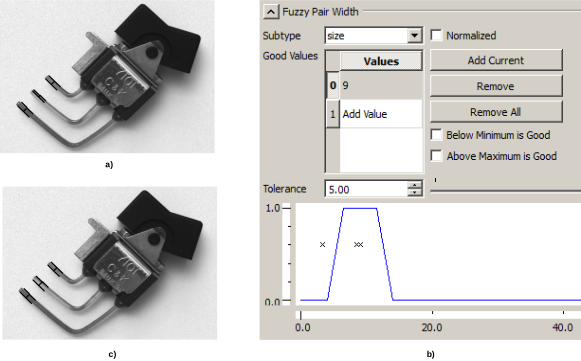
The images of a dip switch show how to use fuzzy measuring to improve edge detection.
Due to surface reflections, one of the edge pairs is not detected properly.
It is, however, known that the pair width is 9. Setting Fuzzy Pair Width to 9 results in the exclusion
of the wrong edge and therefore also in the detection of all the right edge pairs.
Please note the description about how to specify
“good” values.
You can learn how to use the Normalized option in the paragraph
“Advanced Fuzzy Features”.
Whenall relevant edges have been found, continue to the
Results tab.
Fuzzy Pair Gray Mean
Fuzzy Pair Gray Mean lets you select pairs of a certain
mean gray value.
Please note the description about how to specify
“good” values.
Whenall relevant edges have been found, continue to the
Results tab.
Advanced Fuzzy Features
The advanced features explained below enable you to adapt your fuzzy settings
more easily to a different camera with a higher resolution, a different distance
between object and camera, or in general an image that is larger or smaller.
The Normalized option can be activated for
which are then converted to factors and multiplied with Reference Pair Width.
The translation from regular to normalized values is automatically calculated when activating or
deactivating the Normalized button. Therefore, corresponding graphs do not change.
Choose the Reference Pair Width corresponding to the width of your reference pair.
When changing your setup, adapt the Reference Pair Width to your new image size, for example, if your
image is now double the previous size, also double the reference Reference Pair Width.