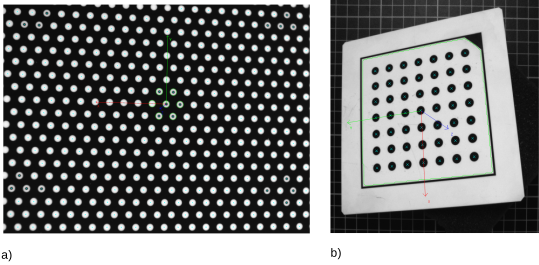
The main part of the calibration process consists of acquiring images of the calibration plate in different positions
and orientations relative to the vision system. Please note that the more you vary the position and orientation,
the better the calibration results will be. Therefore, place the plate so that it appears in different corners,
for calibration plates with rectangularly arranged marks.
Calibration plates with hexagonally arranged marks should cover
the whole image with a single image, at different distances to the camera, and in different planes.
Note that for calibration plates with rectangularly arranged marks it is necessary to not only place the calibration plate
in the center of the field of view, but also move it to the corners and margins. Good calibration images will improve your
calibration results significantly. Detailed instructions on how to take calibration images can be found in the section
“How to take a set of suitable images?” in the reference manual chapter “Calibration”.
Obligatory steps for calibration are
Optional parameters, which may be changed, are
ATTENTION: Keep your camera setup (aperture, focus, pose) fixed when you have chosen it!
This applies to the calibration process itself as well as to the subsequent application.
Any changes will result in the failure of the calibration or, even worse, in wrong output values.
When the calibration images are available, you can push the Calibrate button and move on to the Results tab.
Acquiring Images for a Successful Calibration
Note that the calibration assistant currently supports 8-bit and 16-bit (“byte”
and “uint2”) images.
In order to achieve an accurate calibration result you should pay special attention to the acquisition of your calibration images.
Therefore, see the section “How to take a set of suitable images?” in the reference manual chapter “Calibration”, which gives guidance on the acquisition process.
See figure 7.1 for an exemplary setup with the resulting calibration images shown in figure 7.2.
Choosing an Image Source
The images for the calibration can either be loaded from a file or
acquired directly using the Image Acquisition Assistant.
When loading images from a file, just click the radio button Image Files.
To acquire new images, click the radio button Image Acquisition Assistant. The assistant
will then appear in a new window and support you with acquiring new calibration images.
Note that the calibration works on a single channel. For color RGB images, the red channel will be used.
A color transformation can be performed with the
operator trans_from_rgb.
Calibration Images
All images from files will be displayed with their path on the Calibration tab, whereas images acquired using the Acquisition Assistant
will be displayed with their consecutive numbers.The image status
gives information about the quality of each image. Details concerning quality can be found under Quality Issues.
If you use the Image Acquisition Assistant and want to see a live image, you can also activate Live Image
on the Calibration tab and click the Snap button whenever you want to keep an image for calibration.
If you Load... images from a file into the Calibration
Assistant and then decide to acquire new images with the Image Acquisition Assistant,
you will be warned that the images from the file will be removed from the window.
With the Remove and Remove All buttons on the left, you can remove either one or all images of the list.
The Save and Save All buttons will save one or all images of the list.
Click Update to control the time when camera parameters, segmentation parameters
or quality adjustments have to be transferred for the existing images.
Activate Auto Update to automatically update to the latest adjustments.
Quality Issues are updated with a little delay after adapting Calibration Plate Extraction Parameters.
Deactivating Auto Update enables you to change several parameters at once and speeds up the processing of bigger data sets.
[Select a Reference Image]
With the pose of the calibration plate in the reference image, you specify the world coordinate system and the measurement plane for subsequent 3D measurements
(see figure 7.3). Thus, in one calibration image (typically, the first one),
you should place the calibration plate such that it lies on top of the measurement plane.
If this is not possible, place the calibration plate in a position parallel to the measurement plane and “move” the coordinate system by adapting
the parameter Thickness.
The star on the left side of the Calibration window indicates the reference image. It is by default set on the first image.
You can, however, by clicking the Set Reference button, pick another image as reference.
Calibrating
Click the button Calibrate to finally perform the calibration task.
Check first whether you have enough images of sufficient quality.
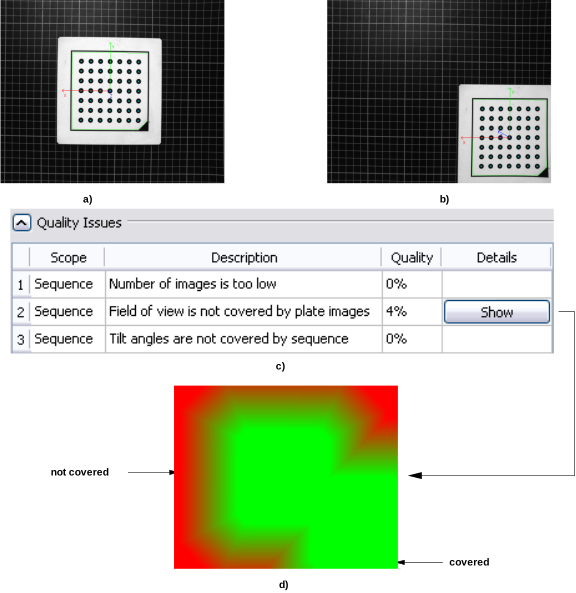
You can check the quality under Quality Issues.
If necessary, you can also change Calibration Plate Extraction Parameters before actually calibrating.
In case your calibration fails and displays the error "Camera calibration did not converge",
check possible error sources in the Checklist for Calibration Errors or have a look at the recommendations
listed in the reference manual chapter “Calibration”, section “How to take a set of suitable images?”.
|
Possible Error Source | Solution |
|
| Did any camera settings (like aperture, focus or pose of the camera) change during the calibration process? | Take new calibration images and do not change any settings during calibration and later during the application. If you decide to change anything you have to start a new calibration. |
|
| |
|
Did you acquire the calibration images the way they are required? | Make sure you followed the recommendations in the section “How to take a set of suitable images?” in the reference manual chapter “Calibration” regarding the placement of the calibration plate, the setup of the cameras and the image properties. |
|
|
|
Are you using an extreme wide angle lens? | The distortions that appear close to the image borders cause a higher Mean Error or can even be responsible for the failure of the calibration. You must use another lens in this case. |
|
|
|
Is the size of your camera chip compatible with the lens? | Using a lens that is not compatible with your camera chip size (this information should be included in the instructions of the lens) will decrease the quality of your image. |
|
|
|
Table 7.1: Checklist for Calibration Errors.
Handling Quality Issues
Under Quality Issues you find an evaluation of each image,
which includes descriptions of the defective image features and a quality score percentage.
A result of 0% indicates a very defective image feature whereas 100% equals ideal quality.
This can help to improve the calibration result by deleting images which are not good enough
and might lead to a higher error rate during the calibration process.
If you need a certain quality level you can set a Warn Level and the defects will be listed under Quality Issues.
The quality issues are detected by image tests and sequence tests.
If you want the program to run faster or if you do not need quality feedback,
you can change Image Tests and Sequence Tests either to Quick, which performs less tests, or None,
which does not perform any tests at all.
If the defects are too severe, for example, if the calibration marks or even the calibration plate are not found,
the Calibration button will be grayed out, making it impossible to calibrate unless all images of such poor quality are deleted from the list.
The test results referring to the calibration plate's tilting may be ignored if later measurements are always conducted in exactly the same plane.
In this case, however, the values for the Focal Length and Z are not correct each for itself but only in their combination.
The reason for this is that neither of these values can be determined for itself which leads to the result that if you get, for example,
a Focal Length that is double the value that it should be, Z will be half as high and vice versa.
Besides, the further you place an object above the plane in which you have performed the calibration, the less precise the result will be.
Note that poor image quality leads to poor calibration results and subsequently causes bad or wrong measuring values.
However, acceptable results are usually achieved even with quality score warnings in the range of 40% to 70%.
If necessary check the following tables for suggestions about improving your image quality. When trying to improve your image quality,
do not forget to check other error sources.
ATTENTION: If you change your camera setup (aperture, focus, pose) during the calibration process or during the subsequent application, you have to restart your calibration with the new setup. Any changes will result in the failure of the calibration or, even worse, in wrong output values.
Note: Due to special settings or unchangeable specifications of your work environment, it may be possible that you cannot fully avoid any quality reductions. If you follow these instructions, you should, however, be able to reach a feasible quality level to work with.
|
Quality Issue | Explanation | Possible Solution |
|
| Plate is overexposed | Parts of the calibration plate are too bright, which leads to a shifting of edges and therefore calculates a wrong center position. | Close the lens aperture or the shutter a bit more or turn down the brightness of your illumination until an adequate quality is reached. |
|
|
|
Illumination is inhomogeneous | The image is illuminated inhomogeneously, that is the brightness of the calibration plate changes within one image. This condition makes it difficult to locate the calibration plate and consequently leads to a lower accuracy. | Inhomogeneity in an image is often the result of using lateral illumination. If that is the case: Can you change the setting and instead use illumination from above? Another possibility would be to use diffuse illumination. |
|
|
|
Contrast is low | The difference between the gray values of the calibration plate and the calibration marks is not big enough. | Reasons can be either overexposure or underexposure. To improve your results, change your aperture or the brightness of your illumination. |
|
|
|
|
Quality Issue | Explanation | Possible Solution |
|
| |
|
Diameter of marks are too small | The diameters of the found calibration plate marks are too small. | To fix this issue, you should either change your setup or use a calibration plate with larger marks. |
|
|
|
Marks on plate are out of focus | The marks are not completely focused, some of them appear blurry. This leads to a lower robustness. | The depth of field has to include the whole object. To fix this error, change either your focal length or the distance of the object to the camera. Alternatively you can also make the aperture smaller and use brighter illumination. |
|
|
|
Quality assessment failed | The image test failed, even though the plate could be found in the image. | For calibration plates with rectangularly arranged marks, check, if any part of the image is occluded and if the occlusion interrupts the black margin of the calibration plate. |
|
|
|
Mark extraction failed for some images | It was impossible to extract the calibration plate marks in some images, which makes it also impossible to calibrate in this state. | Delete the images for which mark extraction has failed and use new images instead or adapt the extraction parameters. Make sure that you follow the recommendations in the section “How to take a set of suitable images?” in the reference manual chapter “Calibration”. |
|
|
|
|
Quality Issue | Explanation | Possible Solution |
|
| |
|
Quality issues detected for some images | The quality of some images is below the warn level. | Check the quality issues of the single images by clicking their names in the list. Handle quality issues as described in the table above. |
|
|
|
Number of images is too low | The number of images is lower than recommended. | Check if you have taken enough images, depending on the type of calibration plate you use. |
|
|
|
Field of view is not covered by plate images | Some part of the field of view is not covered by any image of the calibration plate, that is there are areas with no marks. | Press the Show button, which appears in a column named Details, to see all areas in red that are not covered by calibration plate images (compare figure 7.4). Before continuing, add the missing image(s) to your sequence. You can avoid this problem by following the recommendations in the section “How to take a set of suitable images?” in the reference manual chapter “Calibration”. |
|
|
|
Tilt angles are not covered by sequence | The calibration plate has not been tilted enough. | Add more images of your calibration plate tilted in different directions. For calibration plates with rectangularly arranged marks we recommend tilting the plate in every quadrant of the image twice and vary the tilting direction. |
|
|
|
Not all image sizes are identical | The image list contains images of different sizes. | You have changed your setup while taking calibration images. Therefore, you should delete those images taken before the change to get useful results back. |
|